Test Company Posting Journal File Destinations


One thing we all must remember while restoring a Live Company DB onto a Test Company DB is, that several places in GP tables, Company ID is stored. We have a SQL Script that will search ALL tables and ALL columns that contain the Inter ID (SQL ID for each GP database) and replace the live DB ID with test DB ID.

This post explains some specific cases where the Posting Journals of all transaction types are destined to a text file. Typically, in a multi-company environment, consultants would setup the path for all Posting Journals with the respective company Inter ID (or any folder name that uniquely identify each company).

I will explain you an ideal scenario, where this poses an issue.

I would restore live backup onto a Test Company and run the SQL script that will replace all live company ID references to test company ID. But my Posting Journals File destination is a simple string value, something like below (I have taken Purchase as a sample series):

:C:Journals/[CompanyID]/Purchase/[JournalReportName].txt

So if my live company ID is, for instance, VMLIVE, then the above path would like this:

:C:Journals/VMLIVE/Purchase/JournalReportName.txt

Whenever I post a purchase transaction, my Posting Journal detail would go and get append on this file, which I can audit at any point of time.

Now, consider that my Test Company ID is VMTEST. When I restore my live backup onto my test company and run the SQL script which replace live company reference with test company ID, everything would get fixed except this. Since the value stored in File Destination field in the Posting Journal Destinations table (SY02200) is NOT JUST the company ID, but the above Filename with Path.

After restoration and I post a purchase transaction on my test company, the posting information get appended on the file JournalReportName.txt on the path C:\Journals\VMLIVE\Purchase, which is WRONG. It’s not just wrong. Your posting journal file gets dumped with test entries as well as live entries. If any client audits the Posting Journal files as part of their internal process(es), then it’s a big trouble.

In such scenarios, where all posting journals are destined to a text file on a path identified specifically by a company ID or name, the GP Administrator must make sure that the field FILEXPNM (File Export Name) on table SY02200 (Posting Journal Destinations) must be properly updated before we post any test entires. Below is the simple UPDATE statement which would fix this:

UPDATE SY02200
SET FILEXPNM = REPLACE(FILEXPNM, ‘[LiveCompanyID/Name]‘, ‘[TestCompanyID/Name]‘)

Where [LiveCompanyID/Name] denotes the value which identifies your Live Company and [TestCompanyID/Name] denotes the value which identifies your Test Company.

VAIDY

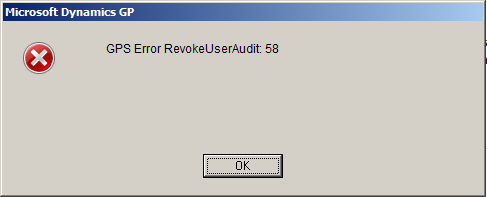
User Access Setup Error: GPS Error RevokeUserAudit: 58


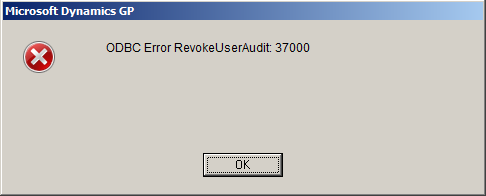
I faced this error message from the time I upgraded to GP2010 R2. The error message is thrown when we revoke access to a user on a company. Below is the exact sequence of error messages that I received:

Since I had not doing this frequently (it’s maximum 3 users in 6 months) and also the purpose of revoking access was working without any issues, I did not consider this as a harmful message.

Yesterday, I had to revoke access to users for an existing company due to some maintenance. Minimum of 10 users and I started receiving this error message each time I select a user and revoke access. It’s then I decided to check this out and clear it once for all.

I could get only one link with exact error message, which I found on our Community Forum. User Access Setup Error: GPS Error RevokeUserAudit: 58.

Let me explain what I did to get rid of this.

1. Check the second error message. It says it did not find the stored procedure *mxCallRevokeUserAudit*.

2. I checked whether this stored procedure is available on any other company that I had on my GP environment. I could not find one on any company.

3. I was intrigued by the name of this stored procedure since, it’s not similar to any Microsoft Dynamics GP SQL object naming convention.

4. I then launched GP and opened Tables Resource Description (Microsoft Dynamics GP -> Tools -> Resource Descriptions -> Tables).

5. Since the message said something about *Audit*, I thought I would first check with *Audit Trails* module. To my surprise (and joy, of course), Physical Name of all tables started with *MX*.

6. I then concluded that the SQL Stored Procedure what I am looking at, is also of *Audit Trails* module.

Now I could not do much with that, since I could not find that stored procedure anywhere. I checked my GP licenses and it did not cover *Audit Trails* module at all.

When I upgraded to Microsoft Dynamics GP2010 R2, I had selected this module also for installation. Since this module is not covered under my license, it installed the dictionary but it did not create the SQL procedures (that’s my assumption and I may be wrong).

The only option that was left; to remove this product from my environment (by removing DYNAMICS.SET file contents alone and not the dictionary itself).

This removed that now (in)famous error message.

VAIDY

Don’t update "Batch Status" thru’ SQL when users are logged on


A user complained about a batch not being able to be posted. The error message is something like this: This batch is currently receiving transactions.

Normally when a user complains about something like this, a GP Administrator or Consultant’s immediate step is to check what the *Batch Status* field holds in SY00500 (Batch Header) table. The legend for this field says:

0 – Available – BATCH_AVAILABLE
1 – Marked to Post – BATCH_POSTING
2 – Marked to Delete – BATCH_DELETING
3 – Marked to Receive – BATCH_RECEIVING
4 – BATCH_DONE_POSTING
5 – BATCH_PRINTING
6 – BATCH_UPDATING
7 – BATCH_POSTING_INCOMPLETE
8 – BATCH_PRINTING_INCOMPLETE
9 – BATCH_UPDATING_INCOMPLETE
10- BATCH_RECURRING_INCOMPLETE
11 – BATCH_POSTED_WITH_ERROR

And quite apparently, in my case, it was 3. i.e. BATCH_RECEIVING. It’s very easy to update this field back to ZERO that denotes BATCH_AVAILABLE, so user can post it.

I could have also done the same thing. But I did not. I just wanted to make sure that this batch indeed did not receive any transactions. How do we identify whether a batch is receiving transactions or not? That I will address in another post.

This one is intended to caution a Consultant or Administrator NOT to update *Batch Status* thru’ SQL for any batch which is marked as BATCH_RECEIVING when users are logged on.

It would break a valid transaction being saved in this particular batch. When a batch receive transactions, GP locks this batch from getting posted only by updating the *Batch Status* field with BATCH_RECEIVING. By changing that from back end, we are risking batch getting corrupted.

Tell the user that he/she has to wait. And wait till users log off from GP. And then check whether the *Batch Status* becomes BATCH_AVAILABLE. In case it is not, then you update it thru’ SQL.

It is worth waiting for sometime than trying to clear a mess. I take this opportunity to insist again: SQL is not ALWAYS an appropriate approach for issues that we face in GP.

UPDATE: David has sent me a link, which quite obviously I missed mentioning here. How did I miss this? We do have a way to release stuck batches without logging off users.

VAIDY

Dynamics GP 2010 R2 – Features List is Out


Mariano, in yet another terrific post shows us the first report on list of Dynamics GP 2010 R2 Features.

Awesome list of features being added and I have already started preparing my own plan of actions once it’s out.

VAIDY

GP & Mixed Mode Authentication


I was attending a LinkedIn query from a User who was facing issues with GP Utilities & DB Creations. Upon checking  his environment by a remote-controlled session, I identified that it was SQL Server Authentication issue, which was denying him to even log on to GP Utilities and move further.

It’s very important to understand that GP Application supports only SQL Server Mixed Mode Authentication. What if we accidentally selected (rather left changing the default SQL Authentication option which is) “Windows Authentication”?

With SQL Server 2008 (I have not checked this in SQL Server 2005 and earlier versions), we have a very simple way to change it.

1. Open SQL Server Management Studio (SSMS).
2. Login to the respective SQL Server Instance.
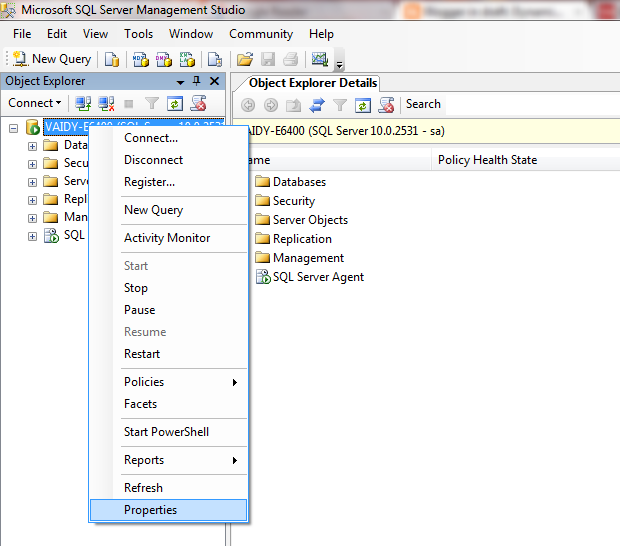
3. On the left pane, right click on the Instance Name and select “Properties”, as shown below:

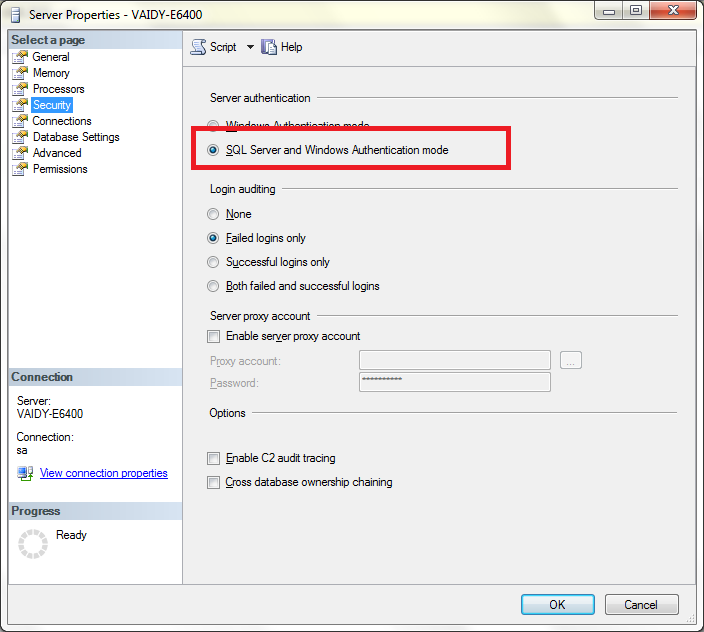
4. Under the Security Page, select “SQL Server and Windows Authentication Mode” as shown below:

5. Click on OK and restart the SQL Server service to effect this change.

Earlier I remember, I had to uninstall and reinstall SQL Server instance had I selected the wrong authentication mode. I think the version was SQL Server 2000.

With SQL Server 2008, you will be saved with an hour or more.

Point to Remember: If you enter “sa” and it’s password correctly and still you are invited with a message that reads like “Login failed”, then make sure that SQL Authentication mode is “SQL Server and Windows Authentication Mode”.

VAIDY

GP2010 – Sales Charts & KPIs – Top Items By Sale Amount – Stored Procedure Bug


I stumbled across a bug (of sorts) in GP2010 SSRS Charts & KPIs for Sales Module.

GP2010 has got default Charts & KPIs designed in SSRS and we have quite hands full of Charts & KPIs which covers most of our basic requirements. One module which is very good in terms of coverage is Sales. Under Sales, we have a Chart & KPI called Top Items By Sale Amount.

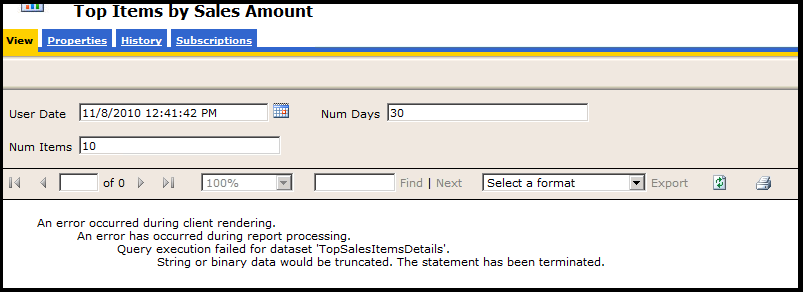
When I ran this report to view the results, I got the following error message:

The error message mentions that there is an extra bit of string data that’s getting forcefully truncated due to size restrictions. This clearly indicates a SQL Error Message. I ran the SQL Profiler furthering the probe. And the issue was rounded in to a Stored Procedure which is run to extract the needed data for this Chart & KPI, which is seeSOPTopTenSalesItemsByPriceMetric.

In that stored procedure, a temporary table is created with a column named ItemNumber which is of size char(18). We all (Consultants/Developers) know that, in GP, size of a Item Number is 31 in SQL.

So, this SSRS Chart & KPI will fail if any Item Number exceeds the size 18 in variably, which is a bug in this Stored Procedure.

FIX: I ALTERed this stored procedure to resize this particular temporary ItemNumber column to char(31) and report retrieved the details excellently.

VAIDY

Why does Microsoft Dynamics GP use a Data Folder? – David Musgrave


An informative post from David for all Consultants who face the same query from a Customer.

Read it here: Why does Microsoft Dynamics GP 10.0 and later use a Data folder?

VAIDY

Online Services for Dynamics GP – Triggers GP "Add Command" Hanging Indefinitely


I am not sure whether the issue that I am going to explain here has got any relevance to the actual issue that I faced recently. I leave it to readers and consultants out there to second my finding had they faced this before.

Issue: When I tried adding a GP Window to my GP Home Page Quick Links, the Add Command window hung indefinitely, forcing me to kill GP and launch it back.

Troubleshooting: I first ran the Dex Script Log and it was unfortunately inaccessible as GP had to be killed eventually and this file got stuck in between. I then ran SQL Profiler exactly at the time of clicking “Add Microsoft Dynamics GP Window” which triggers “Add Command” window to be opened.

Firstly, the process was still active and there was one table which got hit in a loop, I sense that an indefinite loop. The Physical Name of that table is SY07110. The Technical Name is syMenuMstr.

Secondly, this indefinitely looped process was hitting only one product ID in that table, which is 6499. This 6499 denotes the product Dynamics Online Services.

Thirdly, when I queried this table from SSMS, it had 5700+ records out of which 3750+ records where recorded only for Command Dictionary ID (CmdDictID) 6499, which is Dynamics Online Services.

I was totally clueless why this must had got so many records on this Menu Master table. I was also totally clueless what needs to be done with this product being active on my GP environment.

Solution (Temporary): I removed the Dynamics Online Services product (using Add/Remove Features) and this issue never occurred later.

I checked KB and I checked blogs & forums to no avail. Guess I was the first one to face this. Uninstalling the product Dynamics Online Services, is not a permanent solution, and it does not affect any other process than the Quick Links one. But this seems to be either a bug or something which went wrong in my environment.

Have to do some more analysis on this to get a fix.

VAIDY

SOP Quotations Import – Issue & Solution


Recently, I had to integrate around 1000+ Sales Quotations which comprised of 10000+ Sales Item Lines. This had to be done in a seemingly impossible timeframe, as we were totally running out of schedule.

I devised a strategy to do an All-SQL work as follows:

1. First Export required SOP tables from source database and Import it as SOP TEMP tables to destination database. The Source & Destination databases denote GP Company Databases, of course.

2. Generate the SOP Number by taking the Number Sequence from destination GP Company SOP Quotation Setup.

3. Update all SOP TEMP tables with relevant new SOP Number.

4. Identity only those fields which are required and then do a direct INSERT INTO. This insertion, in my case, happened for SOP10100 (Header), SOP10200 (Detail) & SOP10106 (User-Defined).

5. Once the above is done, run a Reconcilation on all these inserted documents, to make sure that these documents got accepted by destination GP Company as valid SOP Quotations.

All above tasks took me 5 hours of time (including 2.5 Hours of Data Updates & Reconciliation).

Excellent, and I was so happy that I could meet the deadline. I intimated the users to verify and send me the feedback. Users reported back with positive feedback and I was relieved.

ISSUE FACED: Quotations were not getting converted to Orders. Transaction Edit List shown nothing. All looked perfect.

TROUBLESHOOTING RESULTS: 30mins of troubleshooting yielded me one very silly reason behind this issue. The field in SOP10100, USDOCID1, was an Empty String for all Quotations integrated thru’ SQL. This field is the one which tells GP to which Order ID it is suppose to convert this quotation to.

SOLUTION: You all may know by now what the solution would be. Another SQL UPDATE which took the “Transfer To Order ID” value from SOP Quotation Setup and updated SOP10100 accordingly, did the trick.

WARNINGS:

1. Though I had mentioned that I followed ALL-SQL approach, it’s not supported by Microsoft.

2. I have not shared the SQL Scripts here, as it completely depends on the particular scenario and the way SOP Quotations are used by clients.

3. This post is intended to explain two things:
3.1. There are several successful & time saving approaches that we can follow, even if it’s unconventional.
3.2. With each unconventional approach, there lies a risk which cannot be foreseen. Unless, you are dead sure about your GP Technical & Database Skills, you are NOT suppose to tread any such approach.

4. I just wanted to highlight how one single field (which in our perception may look simple) may cause a critical consequence.

VAIDY