I and my Project Manager, couple of days back, discussed many things involving GP and Dexterity. One particular topic was very interesting and something very weird.
Required Fields in GP are displayed as we specify in the User Preferences -> Display Options. For instance, if I have set the preferences to show the Required Fields in Bold & Red, then I will be seeing the required fields in Bold & Red. But this will not be happening for the fields which are in a Scrolling Window.
For instance, Unit of Measure in SOP Entry form is placed in the SOP Line Scrolling Window, is a Required Field for an SOP Line. If we do not enter a value, we won’t be allowed to leave that line. But the prompt (Label), which is right on top of the grid, is not shown like it is setup in the User Display Preferences.
The issue is, the User will not be knowing which field he needs to enter and which he can leave. When the message pops up, he will not be shown with any meaningful message, such as “Unit of Measure is a required field. Please enter… … … “. If a field in a Scrolling Window is Required, then it needs to be indicated to the User somehow.
There is a limitation in Dexterity that we need to link the respective field to it’s Prompt, using Link Prompt in Dexterity. For a field in Scrolling Window, it is not possible technically to link this field to a Prompt which is in the Header Window. Since Scrolling Window is considered as a separate window in Dexterity, this becomes impossible.
I am still thinking of how we can achieve this. Thanks to Sajeesh, who fed my thoughts with this point. It will be really helpful for the Users to know all the Required Fields, both from the Header and the Scrolling Window area, to effectively enter their records.
Sincere welcome to any ideas regarding this.
VAIDY
VBA & Continuum – Finetuned Dropdown List Sample
Earlier, I had published an article on VBA Combobox & Dropdown List usages (original link: VBA – Combobox and Dropdown List). I had mentioned in that article, that getting the selected value from the Dropdown List was an issue and had provided a workaround for that.
Now, with the guidance of David’s article on this, I have just finetuned this sample. David’s article explains how we can dynamically add Static Text values to a Dropdown List. I derived the idea from the code sample that can be found on this article and the valuable comments entered by Laszlo Neufeld and David’s reply. Do go through David’s article for more details.
Bottomline: We don’t have to worry about writing a lengthy SELECT CASE statement in VBA, whenever we add a new Static Text on to the Dropdown List. The issue that we would face when trying to use Continuum API is that, by default, the dex code that you construct would be executed technically on the standard form. Whatever the field that you have added newly using Modifier will not be accessed from VBA code, unless it is specifically instructed. This trick has been very clearly explained by David in his article. And that’s exactly what I was lacking in my code. By following those instructions, I was able to directly deal with the modifier field whenever a user selects a particular value.
The GL Entry Dropdown List sample can be downloaded from here: VBA & Continuum – Finetuned Dropdown List Sample.
I would like to reiterate what Mariano always use to tell: VBA (combined with Continuum API) is a most powerful and efficient tool for any small scale customizations. We can achieve anything with just pieces of VB and SanScript code. I can’t ask for more, as a GP Developer.
Do go through this sample and get back with your feedbacks.
VAIDY
Writing Translatable Code – David Musgrave
This one is of tremendous value. Check this out: Writing Translatable Code.
There are 11 points, 11 very important and valuable points that we need to follow while coding in Dex. I had experienced some goods and some bads of these when I started my career as a Dexterity Developer.
Thanks for these important points, David. Sincerely expecting more such information in future.
VAIDY
VBA – Combobox and Dropdown List
In VBA, there is a limitation with respect to a Dropdown List. Well, at least for me it looked like a limitation. I am interested in knowing any information on this, though.
I was recently asked about an issue, with respect the Dropdown List. This user has added a Dropdown List to a form using Modifier. This Dropdown List contains certain number of static texts. Now, a field in that form is disabled and the value for this field will come from the Dropdown List. Meaning, the user is restricted in entering any value to this field.
Problem is, to assign the static text from that Dropdown List using a VBA code, seems to be an issue. A typical VBA statement that we would think of writing to assign the selected value of Dropdown List to the field is like follows:
[FieldName].Value = [DropdownList].Value
But it does not work out. [DropdownList].Value returns the INDEX of the selected text and not the TEXT itself. There is no function in VBA, such as itemname() function in Dexterity, to get the text. Is there any workaround? Only workaround that I can think of, is to have a SELECT CASE statement. Something like below:
SELECT CASE [DropdownList].Value
CASE 1 [FieldName].Value = “[Static Text Value in that Position]”
CASE 2 [FieldName].Value = “[Static Text Value in that Position]”
… … …
END SELECT
The only drawback in this method: You have to add a line to this SELECT CASE block, whenever you add a Static Text to that Dropdown List. Quite manageable to some extent.
What about using a Combobox? For a Combobox, instead of a Dropdown List, the statement:
[Fieldname].Value = [Combobox].Value
will work just fine. But the problem is, it is editable. User can enter anything on that Combobox at runtime and the same is going to be assigned to the field. What’s the use of this? It is as good as directly entering the value on to the field.
A sample VBA work is uploaded on this link: VBA-Dropdown-GLEntryForm. Do go thru’ this and get back with your feedback and your valuable inputs.
VAIDY
GP Upgrade – Database Data Space 0MB Error
I had published an article, GP Service Pack 3 Upgrade Error & Resolution, which explained an error that I faced while upgrading GP 10.0 from SP2 to SP3. I received more and more details on several reasons due to which this could have happened. So I thought I would summarize all comments on one article.
Error: While upgrading GP v10.0 from any version to a higher version, you may see the following screens and the upgrade would not complete properly.

Reasons:
There are several reasons to this. I have given each possible reason, by mentioning the name of the contributor in square braces.
1. You do not have the GP Application User Administrator, DYNSA, on your Database Logins. Please refer to my first article on how to rectify this. [VAIDY]
2. DYNSA user exist, but the password is not strong. When we do not use a “strong” password for the DYNSA user at the prompt for the password, this error tend to happen. Try using something like Fr33dom! other than the typical ACCESS and it should proceed through the upgrade as normal. [ANONYMOUS]
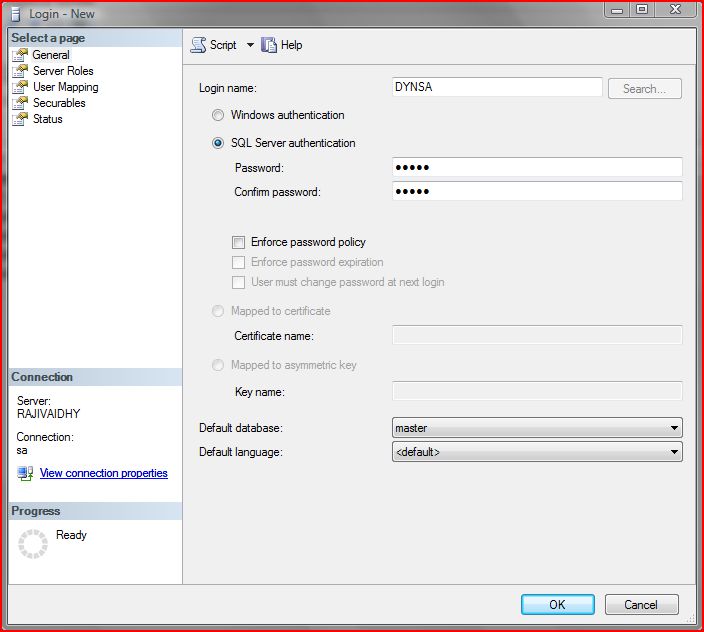
3. DYNSA User exist, but the Password Enforcement Policy for this user is enabled. Well, you may need to disable the Password Enforcement Policy for DYNSA user to avoid password change prompts. [SAMUEL MATHEW]
4. DYNSA User exist, but there is no password set. A blank password for DYNSA could prove troublesome. I am not quite sure how this would have got created when GP is installed for the first time, but check this out and if you end up with this one, enter a password for DYNSA. In this contributor’s case, even a mild strength password did the trick and the upgrade got through. [STACY]
Well, I think this would be useful for people as a reference.
VAIDY
Translating Dexterity Applications – A New Series from David
A new series is coming up, from David, to give us very important and valuable information on how to translate Dexterity Applications. The topics are terrific and I am sure the content would be enlightening.
Do make sure that you check this link: Translating Dexterity Application Series.
Vaidy
GP Service Pack 3 Upgrade Error & Resolution
I had been doing an upgrade from GP 10.0 SP2 to SP3. There was one weird error that happened and I thought I would share it and its resolution.
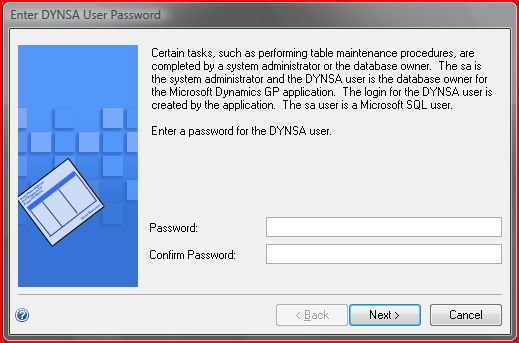
When I completed my GP SP3 installation and started GP Utilities to complete the upgrade and configuration, I was prompted to enter and confirm a password for the user DYNSA, as shown below:
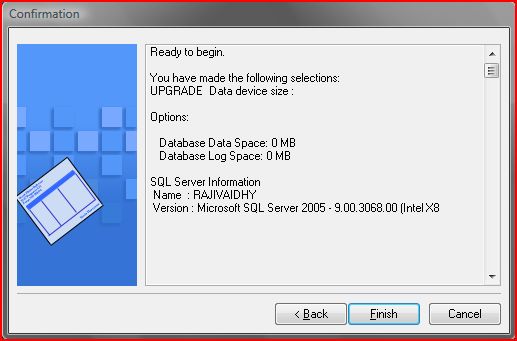
Firstly, this should not have prompted because we would have already created a User called DYNSA, when we installed GP for the first time. I was quite a bit surprised, but continued with the wizard’s instructions to enter the password. The next wizard screen (screenshot below) was quite baffling:
If you see the screenshot clearly, you could see the Database Size 0MB and stuffs like that. This is something which clearly frustrated me. It should have ideally continued with SQL Objects upgrade and configuration.
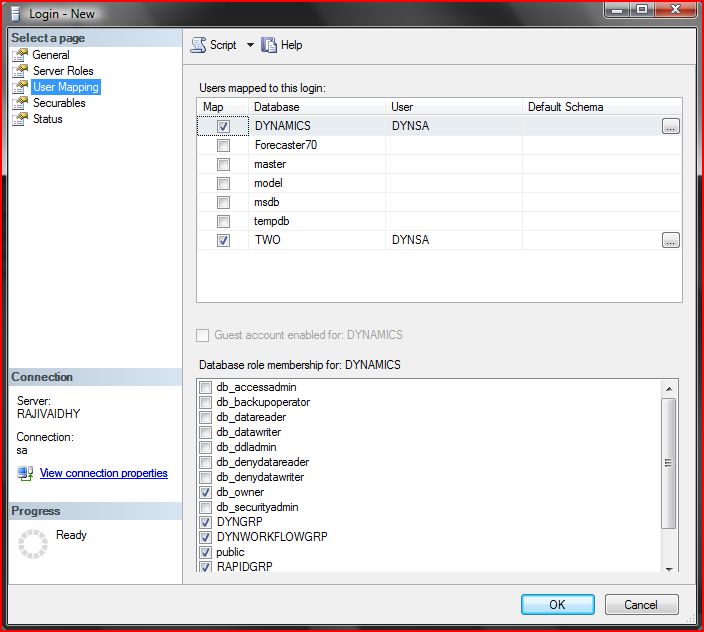
I had to think a bit to finally link the DYNSA screenshot and the second one. I just guessed it right to check the Database Security Logins once, to confirm whether the DYNSA was actually created (or exist at all). And I was right, it never existed.
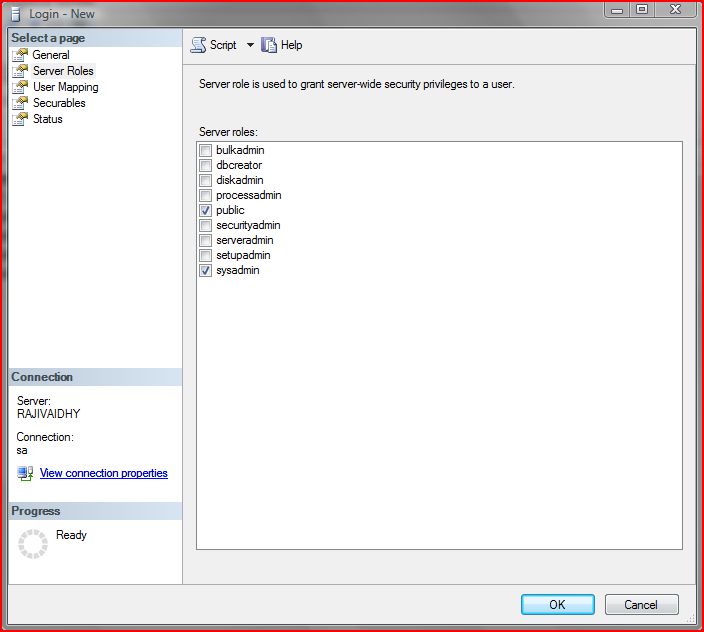
I created the DYNSA user as follows:

Then I relaunched GP Utilities. It went thru’ as expected.
Just one thing which never got clarified: Why in the world the DYNSA user was not created when I installed GP 10.0 on my laptop for the first time? And if it actually did, why and when did it get deleted from my Database Logins?
Well, I am still searching for an answer.
Vaidy
Google Chrome & Symantec Endpoint Protection
This one is strictly out of GP context. It has got no relevance whatsoever to Dynamics GP and related technologies.
For those who have got Symantec Endpoint Protection (Enterprise Firewall & Anti-Spam Software) and would like to install Google Chrome desperately, please take a look at this article.
I was installing Google Chrome browser on my laptop. The installation went on well without any issues. When I launched the browser, an error message was thrown with the message “The application failed to initialize properly (0xc0000005). Click on OK to terminate the application.“ and the browser screen was of dark blue with a crappy message “Aw, Snap! Something is happened to …” and the webpage wouldn’t open.
I tried everything from adding some exceptions in SEP (Symantec Endpoint Protection) to reinstalling Google Chrome. There was even a workaround suggested across the web, which asks us to disable the Chrome Sandbox feature, which is highly disastrous and should not be done. I browsed a lot of sites and followed some of the most read forum articles and after much struggle came with this piece of information from the Symantec Forum itself: Symantec Forum : Google Chrome Error.
1. Open the Registry Editor by typing “regedit” in Run Command program (XP: Start Menu -> Run, Vista: Just type “regedit” in the search text box available in the Start Menu).
2. Find the Registry Entry: Computer\HKEY_LOCAL_MACHINE\SYSTEM\CurrentControlSet\Services\SysPlant.
3. To the right side of the Registry Editor, find the key “Start” with type “REG_DWORD“.
4. The value for this key would be normally, 0x00000001 (1). Double Click this key to open the Key value editor. And change the Value Data from 1 to 4. Click on OK and you should be able to see the new value for this key as 0x00000004 (4).
5. Close the Registry Editor and restart the machine.
Now Chrome Browser works merrily without any issues.
Buy: Symantec Endpoint Protection
Well, at times, I tend to become more interested and enthusiastic, when I fix some of these errors without either waiting for some replies from the Software Vendors or to accept the fact that it would not work and I should get out of it.
And we don’t get to see know information easily, isn’t it?
VAIDY
Development – Test Mode Vs Chunk
I was recently approached by one of my team members for an issue which she faced with a customization. The error message was nothing but a famous “Illegal Address field …” error message for some field.
The code was perfect and everything looked fine from the surface. I asked her about the chunk details and she responded that she was doing the testing by using TEST MODE directly from the development dictionary. A piece of her custom code access a PA Customized Form (PA Vendor Maintenance, if I remember it correctly).
Now, what exactly is the issue? What’s wrong with this method? What needs to be done to avoid such issues while testing a customization? Too many questions, but the answers are very simple.
Test Mode: Is typically used only when we develop a customization whose scope is limited to just Dynamics.dic. In other words, if you are developing a customization which is limited to the core Dynamics GP functionality, then Test Mode is the best option to do the testing. The external resources that we access from our customization will be limited to that of Dynamics GP, and hence when we test the customization, the scope of access is limited to only Dynamics GP. For more details on Test Mode, please refer to Microsoft Dexterity Help Manual.
Chunk: A more professional way of testing Customizations. Simply put, this is nothing but simulating a Chunk Installation on a typical GP environment. That means, we are good go with any kind of accessibility, be it Dynamics GP or other 3rd Party Products. It’s not just what you have developed that is going to be tested. It’s more than that. For instance, if the client has modified any of the Report from your Customization Dictionary, then this would have created the Reports Dictionary for your Custom Product. Whenever we do a feature addition or bug fixing, we need to release a new version. In such cases, we should make sure that the existing Reports Dictionary is also upgraded to the latest dictionary. If we test the customization thru’ Test Mode, we may tend to forget that we need to update the Reports Dictionary to complete the product installation.
Well, I can add on to the explanation. I just would like stress on only one point, for all Dex developers. Always try to create a proper chunk and then install that on your test environment, to make sure that you don’t miss out anything.
Vaidy
Customizations that we do not need to do – Patrick Roth
This is a must read article from Patrick Roth, Customizations that we do not need to do, for every GP Developer / Consultant. At times and at some Customers’ environments, the GP Business Study (some call this as Business Mapping) and Implementation is done without a Trained / Experienced GP Functional/Technical Consultants.
Personally, I have even seen some of the implementations being done without a Complete Master Data Migration (can you imagine a Customer planning the First Payroll in GP after nearly two months of “Go Live” and come to know that his company’s Employee Master Data yet to be migrated and the Paycodes / Benefits / Deductions yet to be setup? Well, I have seen that!).
Some Customers don’t know about all the features available in GP, how to map their Business Requirements with GP Functionality, how to minimize the Cost involved in covering the Gaps thru’ Customizations. Some Customers blindly agree to whatever the VAR says with regards to the Customizations, though the percentage of such Customers is compartively less.
This article is an eye opener of sorts for people from all sides.
Vaidy