Advantage GP’s 3-Tier : Mariano Gomez


This article from Mariano, explains the necessity of GP 3-Tier architecture and how it improves the performance.

While not always this is required, especially for a relatively mid-size companies, this one is the best approach and the first one to look out, if you experience a sluggishness in your day-to-day GP transactional activities.

Must Read.

VAIDY

Office Palooza – Novice Challenges Conquered


It’s my immense pleasure to inform you all that the Office Palooza Novice Challenges are conquered :-).

Check this link, Office Palooza – Novice Challenges Results, you will find me (VAIDY MOHAN) on the results table. The results are announced as on today. So there are many more entries to come and get validated.

More than the results and the happiness it gives, honestly, it’s the sense of satisfaction that I was able to learn something completely new and manage to clear the challenges. Of course, it was really difficult to solve each, but I must admit, I enjoyed it a lot. There so many things to learn and I am glad I learned some of the nicest concepts available.

I am planning to venture into the Experienced Challenges. It’s already late for couple of challenges, but as I said above, it’s not a bad idea to try, learn and solve all the challenges.

VAIDY

Note: David, thanks again for sending this link to our community. I would not have known about this wonderful contest and the concepts I learned.

Office Palooza – Certainly something to learn


Thanks David, for pointing us to this fun and informative Office/VBA Challenges, called Office Palooza.

And needless to say, I am participating on this event. But, as of now I am submitting the code only for the NOVICE Challenges. I will upload all my entries once the each challenge crosses it’s due date.

It’s all fun, informative, learning and well you would forget the time till you complete each challenge.

Take part and you will see by yourself.

VAIDY

VBA & Continuum – Making an Invisible Field Visible


One of the GP Consultants, explained the following and asked for a method to resolve it:

Issue: Employee Maintenance form contains SUTA State field, which is not available for other Region Installations (for instance, UK and Ireland Region). Since it is not available on the form, the users does not have any idea about this and don’t enter any value. By default, this will store a NULL string (EDIT [04/21/2009]: It’s not NULL String, it’s an EMPTY String denoted as “”. Read the comment from David for more details.). When we try to run Payroll Check, this field will be referred and an error message will be popped up. Now, the catch is: Even if we modify this form using Modifier and make this field visible, we still won’t be seeing this field on screen.

Reason: When the Employee Maintenance form is opened, either the Window PRE or Form PRE script (or BOTH) would be triggered. And from any one, a validation checking the Region would be conducted. Based on that, the respective fields will be either shown or hidden. Since this user’s GP installation is “UK and Ireland” and they don’t have SUTA State, this field would be hidden thru’ code. This will override our Modifier changes.

Solution: A typical and simple VBA / Continuum / Sanscript code would solve this.

1. Open the Employee Maintenance form and add this form to VBA Editor and open the VBA Editor.
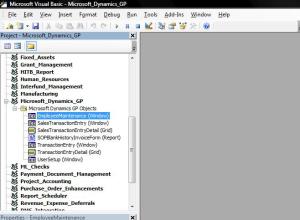


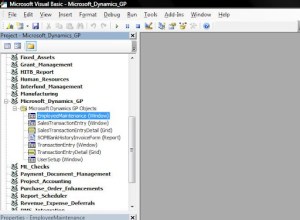
2. From the left hand side tree view, select the “EmployeeMaintenance” from “Microsoft Dynamics GP”, if the form is of original GP. We have several products customizing this form, including HR and Project Accounting. Depending on that, we should select “EmployeeMaintenance” from under the respective product name.


3. Write the code shown below (click on the picture to see it on full zoom).
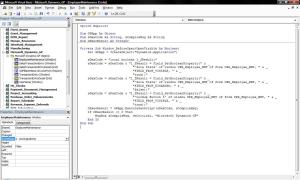


4. Save this VBA project and compile it to see any error message you get. Rectify, if any error found.

We are good to go now. Simple, but very efficient.

You can find a sample package of this customization from the link: VBA & Continuum – Making an Invisible Field Visible. This package will work only on Microsoft GP 10.0 and for Regions other than United States. Try this package on, for instance, United Kingdom & Ireland to see the results.

Do get back with your comments / feedback.

VAIDY

Saluting the Character of ND Community


David had written an article on this and given a link, Red River Flooding, which contains some photos on ND Community fighting Red River Flood. And with that, there is a whole lot of comments (it’s nearly 1400 comments and still counting) on this flooding and the consequences.

While it is not possible to read all the comments, quite understandably, I did go through some comments (for nearly 300). And out of all, this one stands out:

Comment #47: (Excerpts) We will win this thing or die trying. – Don

What a level of commitment and attitude this guy has shown in his words! I am completely taken back by these words. While some of the comments were really cruel and harsh, some were really submissive to the situation, some were prayers, only some comments like this shown the real character of a Community which is relatively small but large at heart.

I salute this spirit, attitude and character of ND Community.

VAIDY

Have you ever seen something like this before?


I did, today. Check the following message:

This warning message was displayed from a custom code. And the focus was on the picture (Exclamation) and not on the Button (the blue border on the OK Button indicates the default option on this message box). I am not quite sure how this could happen.

Does anyone have any idea about this?

VAIDY

Hollywood Secrets of Project Management Success – Review from Navigate Into Success


Those who are interested and practicing in Project Management Principles, an article and the book that it talks about, will be certainly giving a lesson or two.

The article is: Hollywood Secrets Of Project Management Success – A Review Of A Sort. Written by Vjekoslav Babic on his blog. I read this article 4 days back and also had expressed my views on it. But took me sometime to write on my blog about this wonderful article.

Excellent one and it is a MUST READ.

VAIDY

Three Trigger Technique – A Reference for Dex Developers


Triggers in Dexterity; the most powerful and safest way of writing Cross Dictionary Customizations. Often, we get stuck in our Customization Development, not knowing how to intercept certain processes in GP (or any 3rd Party Product).

The Three Trigger Technique, by David Musgrave, explains the “Scope, Relevance & Preciseness” of placing a Trigger. Every Dexterity Developer knows how to write a trigger and on which object. But very less would know where to write it and how safely that can be placed for execution.

First article, Using the Dexterity Three Trigger Technique Part I, explains the theory with a real time example.

Second article, Using the Dexterity Three Trigger Technique Part II, explains the Three Trigger Technique with the support case that David addressed.

Per his bullet points at the end, concentrate on the following (instead of the actual scripts and the fix that he had provided):

– Three Trigger Technique
– Cross Dictionary Triggers
– Capturing and Using References

Must Read and for our Reference.

VAIDY

GET TABLE in the context of a Window


Another classic example of why we should read Newsgroup and Community posts, to learn more and extend the level of our Expertise.

I read this Dynamics GP Community post, SOP Transaction Issue, and there was a discussion on this issue. While this query is yet to be answered or provided a solution with, there are couple of things that we may learn.

1. David mentioned that the issue could be due to multiple users accessing the Next SOP Number. And the code might probably have dealt with Next SOP Number wrongly. I have been instructing this to anyone who asks me how to retrieve the Next Number (for any document that matters). As soon as you retrieve the Next Number from the Setup, you have to increment it by one and save the value in respective Setup Table. For instance, if I generate the SOP Number thru’ my code, I should first retrieve the Next SOP Number from SOP Setup table, then increment the SOP Number by one and finally update the incremented value on to SOP Setup table.

2. Ron Draganowski (of Olsen Theilen Technologies Ltd.) explained how SOP Entry form works when we enter a transaction. The issue of using GET TABLE statement on SOP_HDR_WORK table, was clearly explained. I shall brief you of what he explained: Once we start entering an SOP Document (precisely after tabbing out of SOP Number field), a dummy record is created with only SOP Type and SOP Number in SOP_HDR_WORK table and it is duly locked to store the rest of the values when the Save Record occurs. Now the point here is: Most of us would not know that while inside the SOP Entry process, using GET TABLE on SOP_HDR_WORK will silently release the locked record. And this will have a drastic effect in the later stage of the SOP document process.

Read this Community Post for more and complete details from David and Ron.

VAIDY

Displaying Note Text on a GP Report


I was trying to answer a GP Newsgroup Post, How to add SY03900 table in the Sales Report.

Simplifying the query: Can we display the Note Text for any record (for instance, Customer Note, Vendor Note, Item Note, etc…) on a standard GP report? If so how?

I first suggested to write a RW (Report Writer) function, to pass Note Index as the parameter and return the Note Text from the function. The user replied back, saying that he does not deal with 3rd Party Chunks and he customized the report using Report Modifier. Moreover, he does not have VBA.

Challenge: We are left with only Report Modifier. No new table relationship can be defined. No VBA. No user-defined RW Functions.

Then came David’s reply to the same post. He sent us a link from his blog, which explains Built-In RW Functions which can be used for many default requirements. Getting Note Text is one of them. That’s my starting point to explore this.

Solution: Below is the step by step instruction on how we can achieve this, with limited customization tool options, but with abundant Built-In RW Functions. I have modified the Detailed Item List (Run from Item Maintenance Print Button) for the sample. This sample works with Dynamics GP 10.0.

1. Open the report from Report Modifier (or click on Modify from the Report Window).

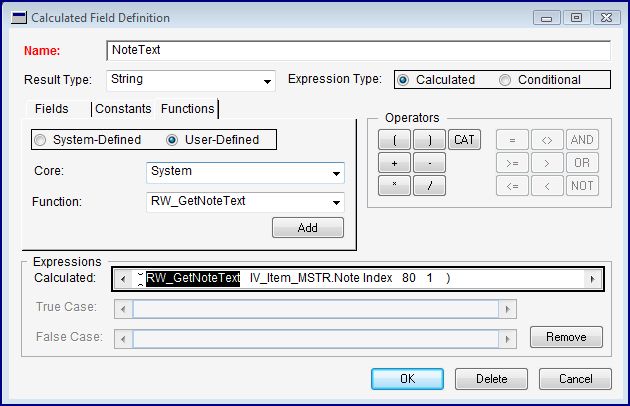
2. Create a new Calculated Field as follows:

3. The Built-In RW function is RW_GetNoteText() and the Series is System.

4. The first parameter is the Note Index value, which is in my case, Item’s Note Index stored in IV_Item_MSTR table.

5. The second parameter is the Number of Characters which is suppose to be shown in one line. The maximum number of characters is 80.

6. The third and final parameter is the Line Number. This instructs the function to get the first set of chars, second set of chars and so on, depending on the Line Number value.

7. On the whole, from my sample definition, it is going to show me the First 80 Characters in the Item Note Text.

Add this Calculated Field anywhere on your report, of course on a more relevant place.

To see the sample that I have developed, please visit this link and download the package file: Using Built-In RW Function to Display Note Text on a Report.

Inspired by David’s Article: Using the Built-In Report Writer Functions.

VAIDY