CBM – User [username] is busy with batch [batchname].


As promised in my previous article, here we go.

This is another frequent error message that Users get when they enter CBM Manual Payments in a CBM Batch:

CAUSE: There will be an Activity record inserted when you open a Batch for Payment Entry, in the table CB300006 (Display Name: Batch Entry Records Locked). This does not get cleared at times.

SOLUTION:

I. Follow the Resolution Steps I & II from this article: http://www.vaidy-dyngp.com/2010/04/cbm-checkbook-checkbook-id-is-already.html.

II. Run the following query once above steps are completed.

DELETE CB300006 WHERE USERID = ‘[username]’ AND BACHNUMB = ‘[batch number]’

We are good to go now.

VAIDY

CBM – Checkbook [checkbook id] is already in user by user [username].


I often come across this request from GP Users:

This happens when the User try to reconcile from CBM Reconcile. And once he/she selects the Checkbook which needs to be reconciled.

After some SQL Profiling & Dex Script Log, I found the following:

Cause:

The table CB100006 contains the User Checkbook Activity records, as and when a User reconciles a Checkbook. This table for some reason is not cleared properly. Sometimes:

1. If you open the form, enter the Checkbook ID and just close it without any activity, this record is not cleared.

2. If you open the form, enter the Checkbook ID and just close GP directly without any activity, this record is stuck.

The above scenarios are faced by me and have not heard of this from any other consultants, so the above need not be recreated consistently.

Resolution:

I. Consultants must open SQL Management Studio, log on to the Data Server and connect to relevant company DB.

II. Run the following queries against DYNAMICS and the respective companies:

/*
   This below queries will delete all stranded and unwanted SQL Sessions.
*/
DELETE TEMPDB..DEX_LOCK WHERE SESSION_ID NOT IN (SELECT SQLSESID FROM DYNAMICS..ACTIVITY)

DELETE TEMPDB..DEX_SESSION WHERE SESSION_ID NOT IN (SELECT SQLSESID FROM DYNAMICS..ACTIVITY)

/*
   The below queries will ensure that the respective user, against whom the error message was thrown, would be cleared from GP Application Session(s).
*/
SELECT * FROM DYNAMICS..ACTIVITY WHERE USERID = ‘[username shown in the CBM error message]’

–Ask that user to log off, if this user has logged on for the day.

III. Run the below query to clear the CBM Checkbook Lock:

DELETE CB100006 WHERE USERID = ‘[username shown in the CBM error message]’

DELETE CBEU1020 WHERE CHEKBKID = ‘[stuck checkbook ID]’ AND USERID = ‘[username shown in the CBM error message]’

That’s it. We are good to go with our Checkbook Reconciliation in CBM.

NOTE: I will be posing another article on CBM Payments Batch Lock Error (which is identical to this error message).

VAIDY

IM Error – Argument ‘Index’ is not a valid value.


I have been working on a Go-Live and been really hectic for the past 2 weeks.

Data Uploads, as usual, and suddenly this error was taking my entire energy. I thought I would blog this one issue which has got no mentioning in any of the forum(s) or KB as well.

I mapped and started integrating Sales Order transactions thru’ Integration Manager (IM). As soon as I started the integration, it threw the following error message:

Argument ‘Index’ is not a valid value.

No clue, absolutely. I searched this error message and got very VB.NET and C#.NET related posts. No idea whatsoever.

Verified my mappings, twice thrice, and everything looked OK. Or was that really OK? Nope.

I decided to do a Post-Mortem of my Integration Mapping again and found one silly error:

I forgot to select a Constant value for my “SOP Type” field. I was fiddling with the options, “Use Source Field” & “Use Constant”. And in due course somehow it just got cleaned up and no Constant value selected.

I selected the option “Use Source Field” and ran the integration. The error message vanished.

Bottomline:

1. When you face this error for any integration, just make sure that you have selected proper Source Field or Constant Value for all Required and Primary Key field(s).
2. Read this article of mine: Little Bit of Philosophy. I myself falling into the same trap of being ignorant of very trivial things. Should be very careful henceforth.

VAIDY

Some Philosophy for Today


When going gets tough, let there be Tougher Belief & Toughest Confidence!

Life’s not always a Vanilla Implementation. It does require some complex customization(s). Depends on how efficiently we understand Life’s requirement and customize it.

Alright, enough. Let me get back to work.

VAIDY

AD LDS & GP Web Service on Windows Server 2008 64 BIT- Workaround


Blown away by this issue and am feeling great to cross a mysterious hurdle.

I was trying to install GP Web Services 10.0 SP4 Hot Fix NOV2009 on the following environment:

1. Windows Server 2008 R2 64 Bit
2. GP 10.0 SP4
3. CRM 4.0 Rollup 9
4. SQL Server 2008 SP1 64 Bit

One of the pre-requisite for Web Services is AD LDS (Active Directory Lightweight Directory Services). This needs to be installed on Windows Server 2008 and no configuration required post installation. GP Web Services will take care of creating an Instance on AD LDS and use it for it’s Data Storage on this AD LDS instance.

I crossed all those steps and started installing GP Web Services and got this message without any delay after double clicking the installer:

The Active Directory Lightweight Directory Services role must be installed on the computer before installing the Microsoft Dynamics GP Web Service.

Nothing other than the above message and I was quite blown away by it’s vagueness. After much exploration, I got the following link from Sivakumar:

Description of the 64-bit operating systems that are supported together with Microsoft Dynamics GP

In that article there is a section called Web Services Runtime Workaround under which there is a subsection called Windows Server 2008 x64 or x86 and Microsoft Dynamics GP 10.0 only, which explains the workaround.

To Summarize the Workaround: With Windows Server 2008 R2 64 Bit, the GP Web Services installation does not identify the AD LDS being installed. It requires a Registry Entry called ADAM_Shared with a registry value, that needs to be created under HKLM\SOFTWARE\Wow6432Node\Microsoft\Windows\CurrentVersion.

We must be carefully following the steps to avoid any consequences.

For those who do not have access to CustomerSource / PartnerSource and are struggling with this issue, comment on this article or email me to my ID: vaidy.dyngp@gmail.com.

Thanks to Sivakumar & Prem (Elcome’s Sys Admin), who were instrumental in sending this link to me on time and clearly saved my day.

VAIDY

ERP Implementation Strategies – Houston Neal


Those who are currently doing or planning implementation(s), a must read article by Houston Neal of Manufacturing Software Advise.

Houston walks us thru’ 3 kinds of ERP Implementation:

1. Big Bang
2. Phase Out
3. Parallel Adoption

I voted for 2nd method, which is Phase Out, due to various practical reasons.

Check out his article, ERP Implementation Strategies – A Guide to ERP Implementation Methodology.

And people, don’t forget to vote your kinda strategy. There is a poll waiting for you.

Very good article, Houston. Precise concepts being told in simple language.

VAIDY

MS Excel VLOOKUP – Learned it Finally


Don’t be harsh on me of being so ignorant. But this concept is one thing which I never learned it quite right.

One of my colleagues, Nasir, used to teach me this wonderful VLOOKUP concept and I always got it wrong.

Today I decided to get it right once for all. Stumbled across this video, Brainstorm’s VLOOKUP Tutorial Video, which is available directly from MS Excel Help Links.

This is exactly what Nasir also explained me, but somehow I missed something in this entire process.

Thanks for his patience and thanks to this video. I thought I would create a pointer to this Easy to Understand Video, for those out there who are struggling (like me till today) to understand this concept.

VAIDY

Caps Lock Reminder for GP Login


How many times have you entered your GP Password with CAPSLOCK on and got a Login Error Message?

Well I do, most times. I decided to write a code which would remind me of this at least once, like any other application.

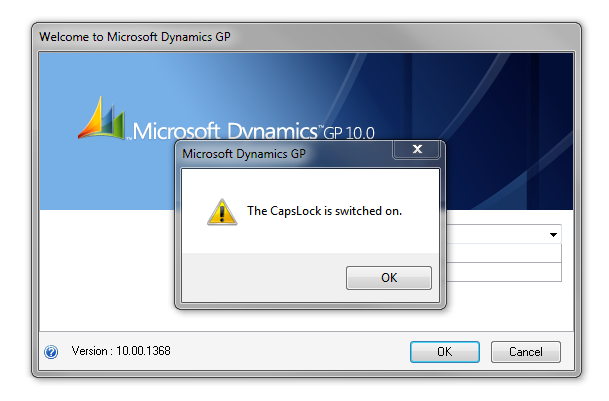
Thought I would share that with all who need it. This particular code will display a message box like below when you launch GP with CAPSLOCK key ON.

This message will also be shown when you try to change the User after logged on to GP thru’ different User Credential.

Kindly Note:

1. This message is displayed only once. You must hear what it says. If not, the message is of no use. 🙂

2. This code is written on Microsoft Dynamics GP 10.0 SP4. I have not tested this on other Major as well as Minor versions.

Find your free package here: CapsLock Login Message Package File.

VAIDY

Tools Available from Professional Services – Leslie


Leslie presents a comprehensive list of all Addons / Plugins that are distributed by Professional Services.

Some are free and some are with a price tag on it. All are worth looking at.

VAIDY

Would you do it in Restaurant? – Interesting Article in eOne Blog


When I watched the video, I was so amused. But then think a bit deeper in the same lines. Do we do this in real life?

Do we really intend to? And that’s exactly what eOne blog article, Would you do it in a Restaurant?, talks about.

Read it, I am sure you would sit back and think after enjoying the video.

VAIDY