Changing SQL Server Collation After Installation


I had a necessity to change the collation of newly created SQL server instance from CI_AS to CP1_CI_AS.

To brief you about why this was needed, I wanted to test upgrade GP from version 2010 RTM to 2010 SP3. In order to that, I created a new SQL server instance with collation SQL_Latin1_General_CI_AS. I restored GP 2010 RTM backups on to this newly created server. But later realised that GP databases that I got for 2010 RTM was of collation SQL_Latin1_General_CP1_CI_AS.

There were two options. Either I must change the collation of databases to CI_AS or I must change the server collation itself to CP1_CI_AS. Later seemed to be a better option (for some reason, I wanted to retain the collation on the databases). I was left with changing the collation of server instance.

That’s when I got this link: Changing SQL Server Collation After Installation

I was worried about the whole process but this post saved me loads of time and sweat. Changing the collation was a breeze.

Anybody out there who is looking for the best possible method to change server collation, above is the post you would want to read.

VAIDY
GP 2010 Mainstream Support Ends Soon


All GP customers, ISVs, VARs and consultants should bear in mind that GP 2010 mainstream support ends on October 13, 2015.

Extended support runs till 2020, however it is strongly advised to upgrade your GP to most recent version (or a higher version on which your other modules/add-ons are compatible with).

You may want to bookmark this complete support schedule on Microsoft’s portal: Microsoft Support Lifecycle – Dynamics GP.

VAIDY

GP2015 R2 Upgrade – GP Utilities “SynchronizeTableData()” Error & Fix


This issue has already been reported and it’s also been addressed. I would like to post this still. To act more like a pointer. It’s quite crucial in nature.

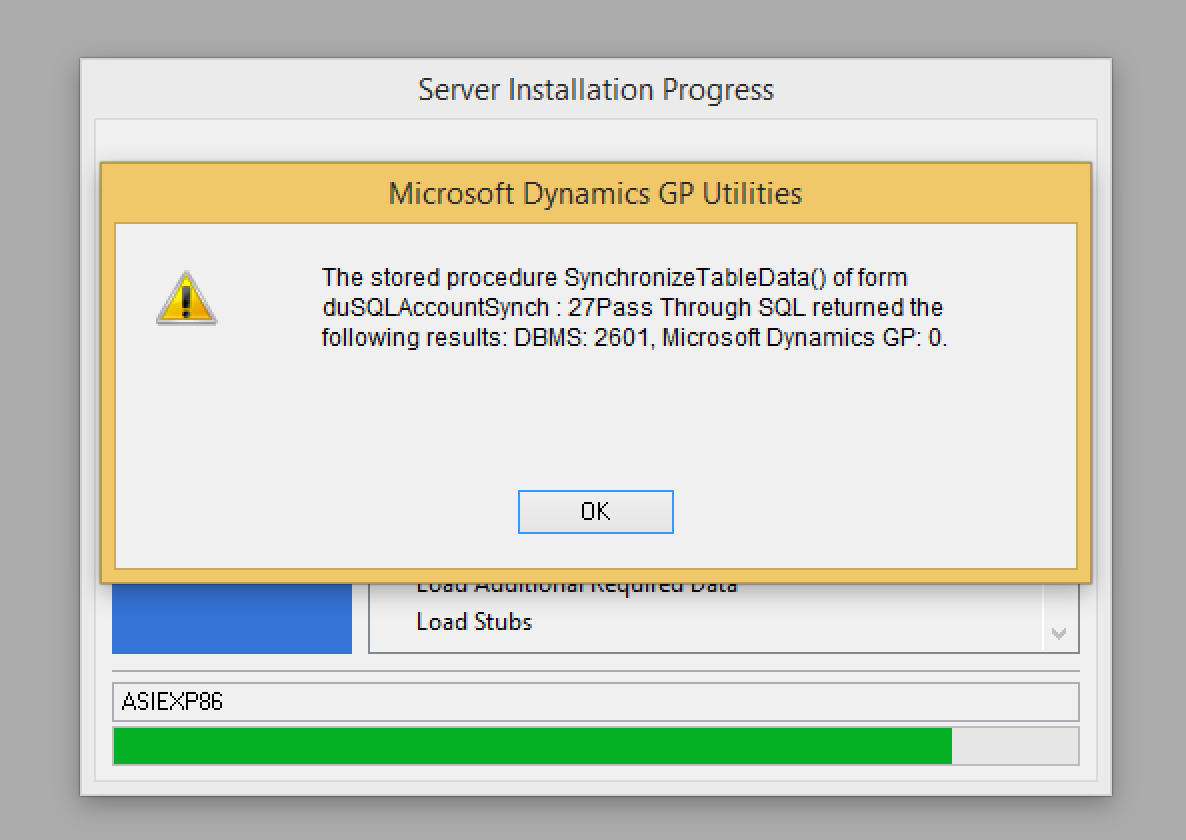
I have been testing GP2015 R2 upgrade on my test environment when I faced the following error message:

Screen Shot 2015-07-27 at 6.10.32 PM

Quite evidently, upgrade didn’t go through after. I remembered this being posted on our GP Support & Services blog. Dug the post and got the solution.

Here’s the post: Known Upgrade Issues When Upgrading To Microsoft Dynamics GP 2015 R2

Please note that this has been fixed already and is available with June 2015 Update.

Vaidy

GP 2015 R2 Upgrade Issues & Possible Solutions


There is a GP community forum question that discuss about GP 2015 R2 upgrade errors. As always, contributors have poured in their thoughts and possible solutions to fix these issues.

Read the question here: GP 2015 R2 errors during update & Fixes

I recommend this post to everyone who are planning to upgrade to GP2015 R2 soon. This may save a lot of time.

Thank you GP community for being selfless, informative and helpful.

Vaidy

CBM Cash Receipt Customer GL Posting Account Error


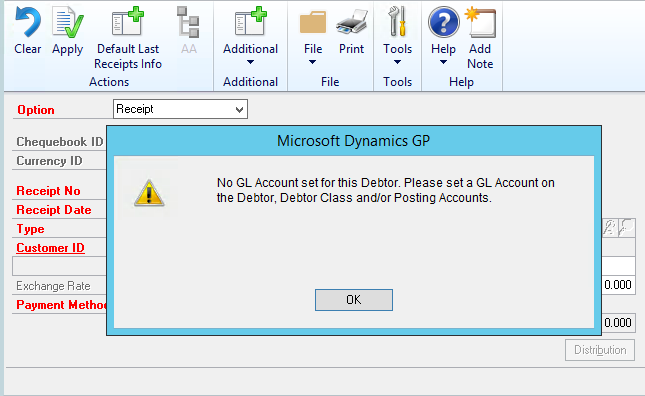
A user reported this issue when he tried to enter a cash receipt in CBM module. Following error message prevented him from continuing further.

Screen Shot 2015-02-23 at 3.10.24 PM

This error was confirmed to be happening only for one particular customer record. For all other customers, it worked.

We basically do not have posting accounts setup for each customer or customer class. So it is absolutely no way due to missing posting accounts. Several minutes later, decided to compare customer records between this particular customer and one other customer that’s working.

REASON: Customer Class ID for this customer record was wrong and was not part of the list of customer classes that we have setup on our company. Because this class ID was wrong, posting accounts validation stopped right there and threw a message that was totally irrelevant to actual reason.

RESOLUTION: I changed the customer class ID for this customer with an existing one. User could then enter a cash receipt in CBM.

Troubleshooting issues successfully is probably the best way to end a business day!

VAIDY

GP 2015 Web Client Uninstall – Issue & Resolution


In my earlier post, I discussed about an issue that I came across while installing web client. This one’s while uninstalling the web client.

My VM is added to my work domain and when I installed web client, my VM was connected to my work network. Back at home, in my holidays, I was experimenting with various stuff. Got my VM web client corrupted and decided to uninstall it.

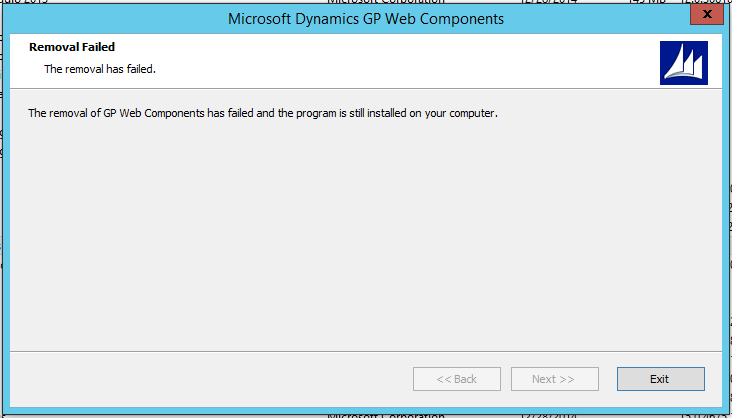
Running the web client uninstall started off properly but threw the following error soon after:

Screen Shot 2015-01-02 at 6.45.37 PM

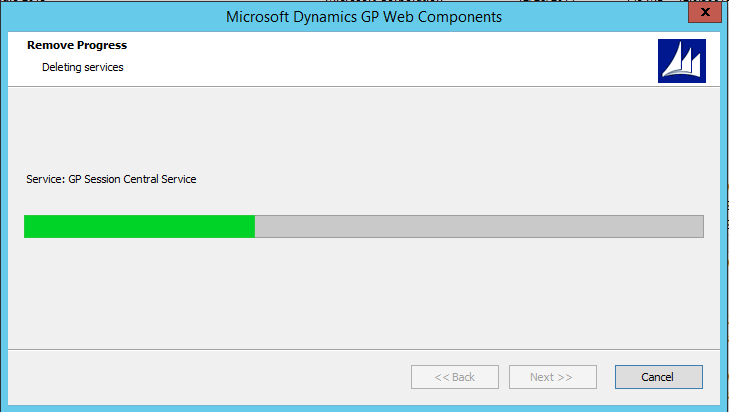
Screen Shot 2015-01-02 at 6.45.48 PM

You may see the point in time at which the uninstall process stopped: ConfigureUsers.

Tried various things, as usual, but could not fix it. Every time I tried to uninstall, it stopped exactly at ConfigureUsers.

My instinct was telling me that it was something to do with domain network issue. As I was trying this at home, it could probably be something related to that.

I connected to my work VPN and then restarted the uninstall process. This time around, the process went on smoothly and completed.

Screen Shot 2015-01-02 at 6.49.15 PM

Remember. If your machine (or a VM) is affiliated to your work domain when you installed the web client, make sure that your machine (or a VM) is connected to your work domain when you try to uninstall.

This makes a world of difference. You do know what that difference is, by now.

VAIDY

GP 2015 DYNAMICS DB Upgrade – Issue & Resolution


This issue is probably remote and may not be faced by many of you out there. But I thought I would share this information with you all, just in case.

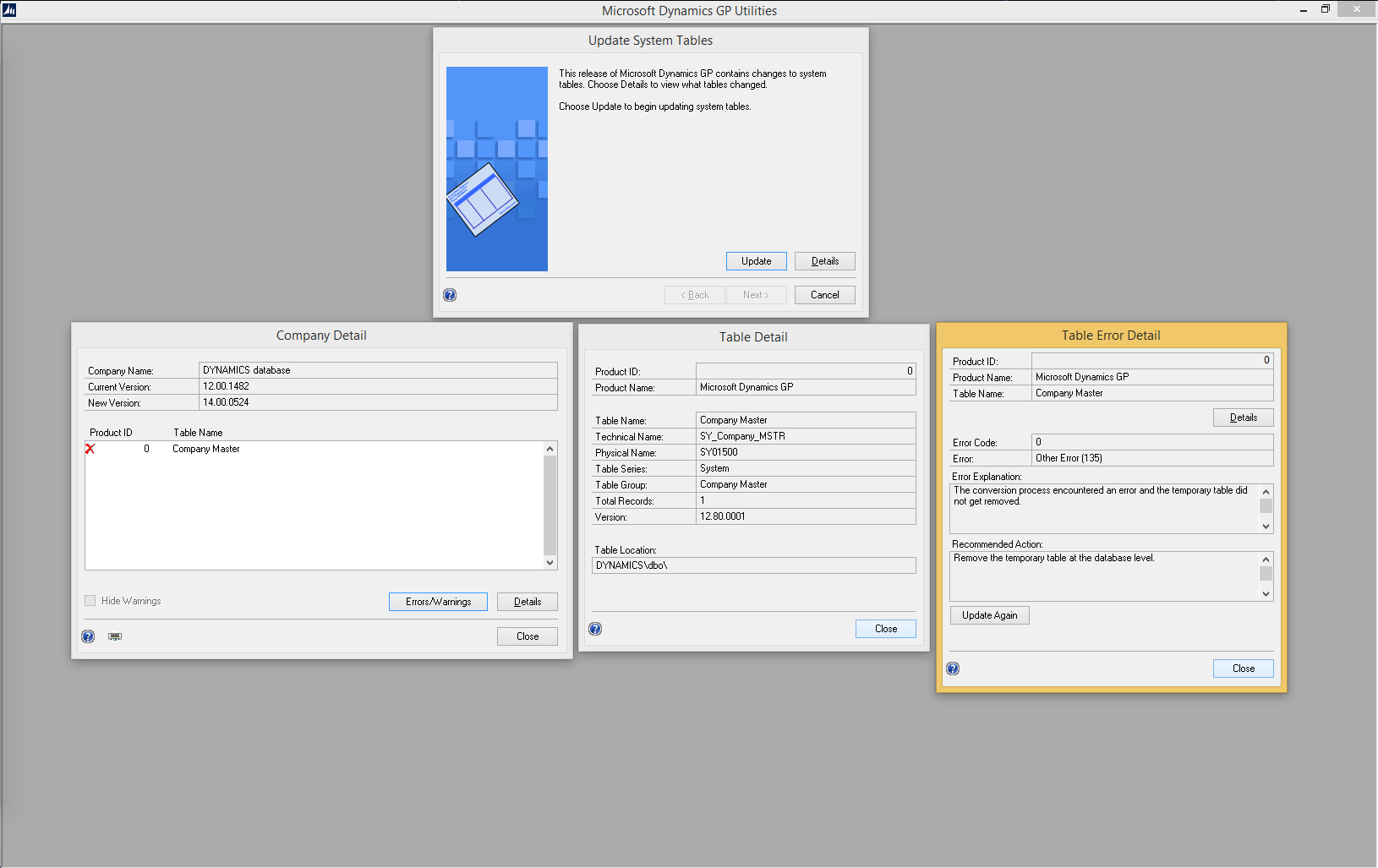
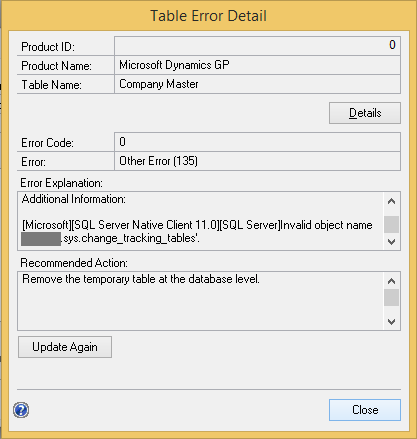
Issue: I was upgrading my GP 2013 to GP 2015. By the time, GP Utilities (almost) finished, it got stuck with an error while updating the table SY_Company_MSTR (Company Master) as shown below. I have tried to capture the entire error details on one screen:

Screen Shot 2015-01-03 at 8.34.42 PM

Error Explanation on Table Error Details had more information that I could not capture above. Below is that additional information. I’d rather say, that’s the exact error message:

Screen Shot 2015-01-03 at 8.35.16 PM

While that greyed portion denotes a company DB name.

Reason: I copied one company database (out of 8) backup from my production environment, restored it on my test machine and ran the utilities to upgrade to GP 2015. When Utilities tried to update Company Master table (SY01500, SY_Company_MSTR), it found records pertaining to companies other than one that’s existing on my test machine while it could not find the respective databases physically.

Resolution: If you are going to have less companies on your upgrade scheme than what’s there on your original GP environment, then you must run Clear Companies script. This script will clear all records pertaining to companies that are not physically available on your SQL instance.

Once I cleaned up the company records, my upgrade process went on successfully.

VAIDY

UPDATED: Microsoft Dynamics GP 2015 Documentation & Resources


In my opinion, Microsoft Dynamics GP team might have hurried the release of GP 2015 RTM.

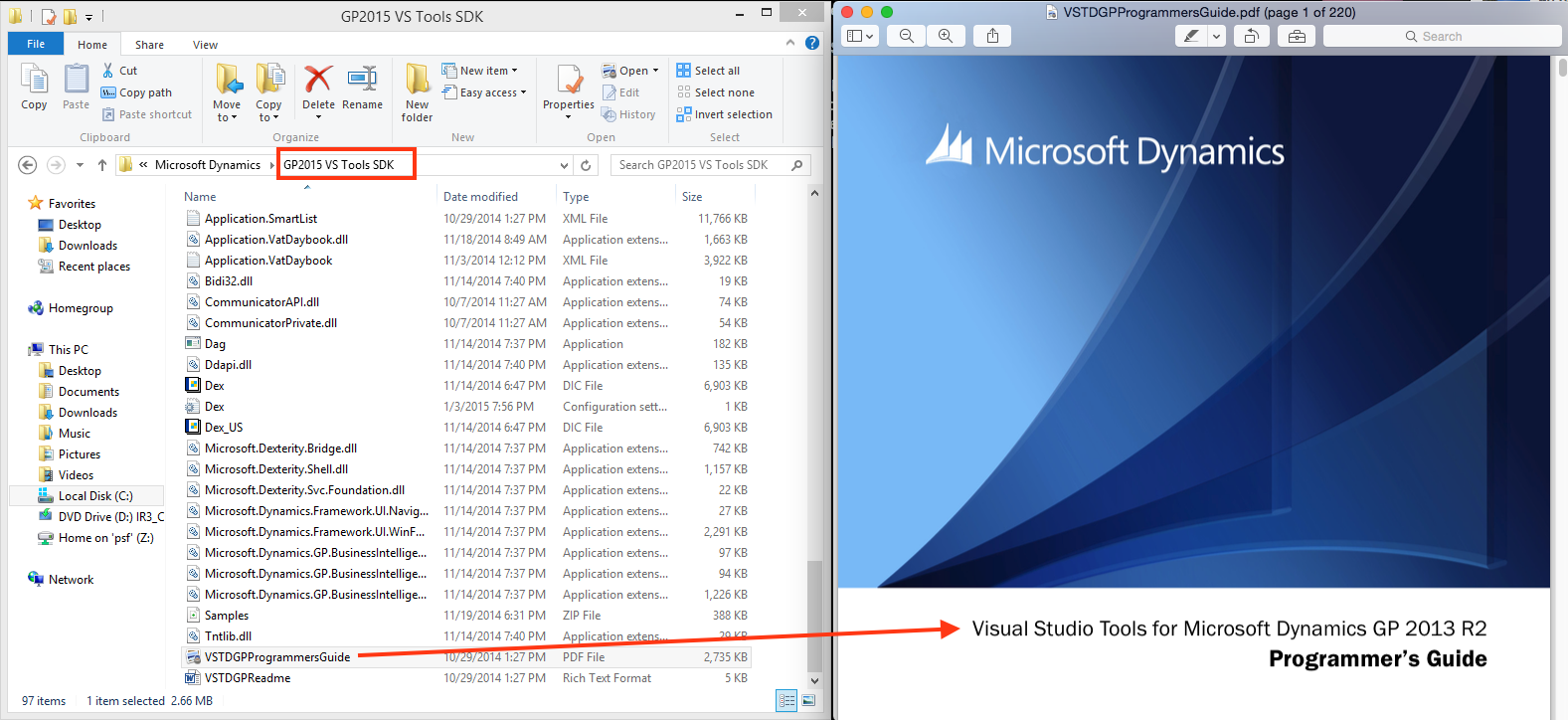
Think about this. You install GP 2015 and the user manuals that comes with that are GP 2013 R2 manuals. For instance, Visual Studio Tools manual that we get after installing the tool is of version GP2013 R2, as shown below:

Screen Shot 2015-01-04 at 4.22.25 PM

Not just this manual, there are also other manuals that are basically for GP 2013 R2 but somehow got shipped with GP 2015 installation media.

Where can we get the latest manuals then? Answer is this link: Documentation and resources for Microsoft Dynamics GP 2015 and 2013.

First section on this post would be directing you to GP 2015 manuals.

QUICK UPDATE #1: I was wrong. Even this link seems to be not having *all* manuals. So probably the new ones are still under construction.

UPDATE #2: More relevant link, shared by Beat, is as follows: http://www.microsoft.com/en-us/download/details.aspx?id=45025

UPDATE #3: Microsoft would probably never update user manuals with each version of GP. This link apparently has got the word on this: http://blogs.msdn.com/b/developingfordynamicsgp/archive/2014/08/08/printable-manuals-for-microsoft-dynamics-gp.aspx

VAIDY

GP 2015 Web Client Installation – Port Conflict Issue & Resolution


I have been doing some R&D with GP2015 (Desktop & Web Client) on my virtual machine for almost a week now. On that note, let me share with you one particular issue, that’s a bit silly, yet possible to be faced by many of you out there.

I had a working instance of GP 2015 Web Client on my VM (that’s connected to my work domain). I uninstalled it due to an SSL conflict with local web site. Uninstall went on smoothly.

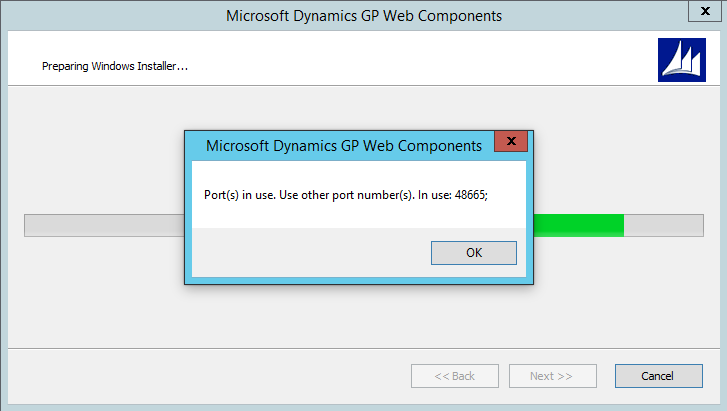
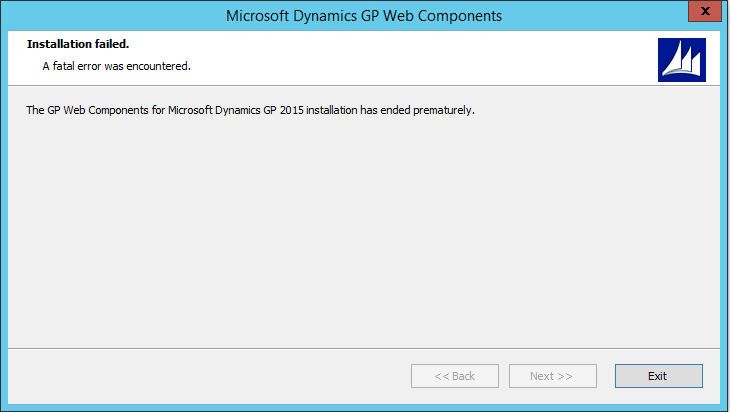
I worked on that local web site stuff and decided to install web client back. When I began the installation, following error message happened:

Screen Shot 2015-01-02 at 3.49.01 PM

Screen Shot 2015-01-02 at 3.50.47 PM

I had no idea about this port, as this port number was never used while setting up the web client installation. I am not an expert in networking either. So googled this error and got this link on Microsoft Support KB: How to determine which program uses or blocks specific transmission control protocol ports in Windows.

I used the command netstat -ano to figure out which process is using the port 48665. Below is the list that I got:

Screen Shot 2015-01-02 at 3.50.25 PM

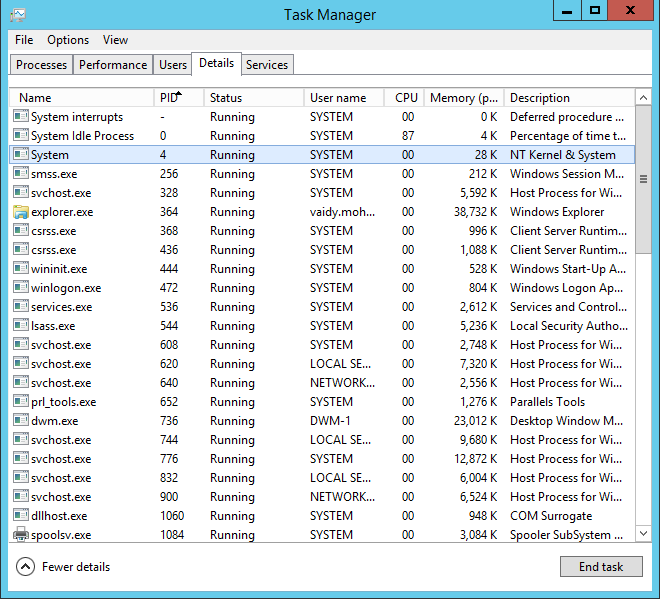
Highlighted on RED box is the one that was using the port 48665. This process was System Process, as found through Task Manager:

Screen Shot 2015-01-02 at 4.15.35 PM

Well, only to that extent could I proceed. My instinct asked me to restart the VM once and see if that clears this port. And it did.

Screen Shot 2015-01-02 at 3.55.00 PM

And my web client installation went on well and completed without any issues.

Reason: After uninstalling my Web Client earlier, I did not restart my machine. I continued with the local web site task and tried to install Web Client again. Previous installation would have held that port (just my assumption) and did not release it till I restarted my VM.

Resolution: If you are going to install Web Client, just make sure that you restart the server.

On my next post, I shall discuss about an issue that I faced while uninstalling my web client and the resolution to the same.

VAIDY

GP 2015 – New Feature – Caps Lock On Message


I had no idea about Dynamics GP Dev team adding this nice little (yet highly useful) feature to Dynamics GP 2015; “Caps Lock On” message while entering a password on your log in screen.

Till GP 2013, we did not have this out-of-box. So consultants/developers like used to write a simple plugin that filled this gap.

But with GP 2015, fortunately for customers and consultants/developers alike, this is now a built-in feature.

Screen Shot 2014-12-30 at 3.10.41 PM

I am not sure how many of us have noticed it. I just did today and in my opinion, this one’s a great addition without doubt.

UPDATE: I also noticed that this message will be displayed on any field in GP with “Password” mode enabled, as shown below.

Screen Shot 2015-01-04 at 3.38.29 PM

Well done, Microsoft Dynamics GP Dev Team. Very well done.

VAIDY