GP Upgrade – “Please Select a Company” Message


This one’s quite simple, yet intriguing.

I am working on a test upgrade; from GP2010 to GP 2015 R2. I decided to only take production company databases and left all test companies, for all logical reasons.

After applying GP 2010 SP4, I decided to perform a unit testing. After logging in to GP, I received following message, without having any issues later on. It was just this message:
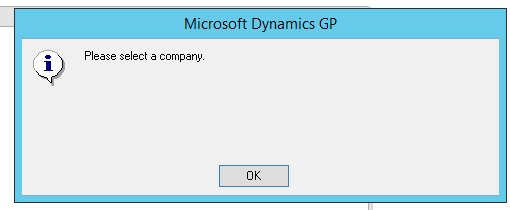
Company Message

(Above screenshot courtesy: Ugan)

As a thumb rule, I searched on GP community and stumbled across two most relevant forum questions and suggestions.

  1. Please select a company message after company has been selected and logged into
  2. Dynamics GP 2015R2 Upgrade – Please select a company

None of them is answered.

I had a suspicion that this must be something to do with “Remember this company” option on “User and Company” window. I decided to use GP Power Tools (previously Support Debugging Tool – SDT) and SQL profiler to study this message in depth.

As suspected, results pointed to the option “Remember this company”. Now, if you remember what I said earlier, I took only the production companies for test upgrade and not the test companies. Previous consultant who was working with this client had selected a test company as his (SA’s) default company.

Now, you must also recollect that we have a SQL script to clean up missing companies’ affiliation across DYNAMICS database.

I ran the above script on the test environment and logged on to GP. This time, I was required to select a company and the message never appeared back.

Happy troubleshooting!

VAIDY

Changing SQL Server Collation After Installation


I had a necessity to change the collation of newly created SQL server instance from CI_AS to CP1_CI_AS.

To brief you about why this was needed, I wanted to test upgrade GP from version 2010 RTM to 2010 SP3. In order to that, I created a new SQL server instance with collation SQL_Latin1_General_CI_AS. I restored GP 2010 RTM backups on to this newly created server. But later realised that GP databases that I got for 2010 RTM was of collation SQL_Latin1_General_CP1_CI_AS.

There were two options. Either I must change the collation of databases to CI_AS or I must change the server collation itself to CP1_CI_AS. Later seemed to be a better option (for some reason, I wanted to retain the collation on the databases). I was left with changing the collation of server instance.

That’s when I got this link: Changing SQL Server Collation After Installation

I was worried about the whole process but this post saved me loads of time and sweat. Changing the collation was a breeze.

Anybody out there who is looking for the best possible method to change server collation, above is the post you would want to read.

VAIDY

OFF-TOPIC: Windows 10 and Microsoft File Transfer Manager (FTM) Issues (UPDATE)


Vaidhy Mohan's avatarDynamics GP - Learn & Discuss

This is my first post from Perth, WA. It’s been an excellent journey and so far so good. More about my Perth life later.

This is something that I never experienced before. When you download any file from PartnerSource or CustomerSource, Microsoft would let you do that only through it’s File Transfer Manager program. If you have that installed already, any download initiation would first invoke this program and then let you set the path/folder to take in that download and etc.

However, when I tried to do that from my new Windows 10 machine, the FTM did not open. I tried to figure that out, but later remembered this same issue happening on my Windows 8.1 machine.

Basically, from Windows 8.1, for some reason, calling the FTM from Internet Explorer worked only on a 32 bit Internet Explorer.

Looks like Microsoft has not fixed that yet. If you are wondering why your FTM…

View original post 55 more words

GP 2010 Mainstream Support Ends Soon


All GP customers, ISVs, VARs and consultants should bear in mind that GP 2010 mainstream support ends on October 13, 2015.

Extended support runs till 2020, however it is strongly advised to upgrade your GP to most recent version (or a higher version on which your other modules/add-ons are compatible with).

You may want to bookmark this complete support schedule on Microsoft’s portal: Microsoft Support Lifecycle – Dynamics GP.

VAIDY

Windows 10 .Net 3.5 Framework Installation Bummer: Error Code 0x800F081F


This one’s another issue that was eating my brain for the past 2 days. Little bit if story first.

I have a Windows 10 Pro virtual machine on my MacBook Pro. Things went well until I tried installing SQL Server 2014 Express, which required .Net Framework 3.5. .Net 3.5 is built-in and we need to enable it from “Turn Windows Features On or Off”.

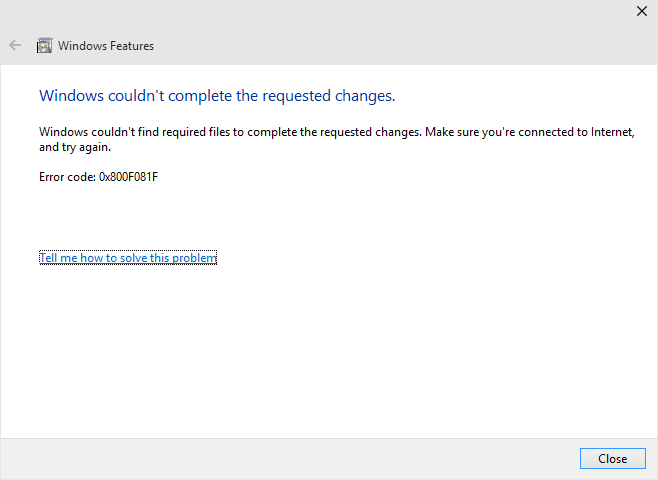
That’s where the bummer was. I could not turn .Net 3.5 on at all. Following was the error message that I was getting:

DotNet35Error

That “Tell me how to solve this problem” takes you to this link: .NET Framework 3.5 installation error: 0x800F0906, 0x800F081F, 0x800F0907.

Unfortunately, for me, this post did nothing other than wasting my 10 minutes of time. Surfing about this error further led me to this post: Offline install of .NET Framework 3.5 in Windows 10 using DISM.

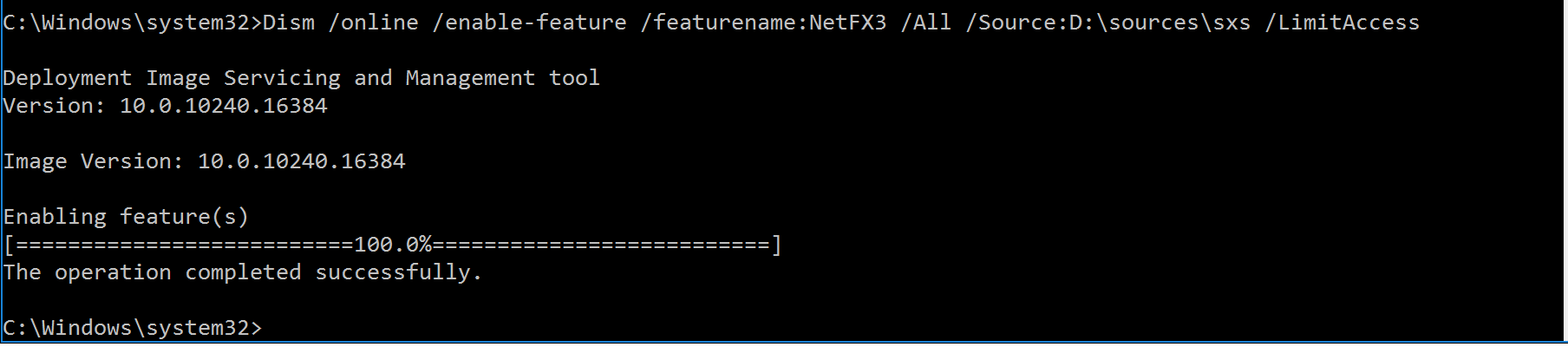
This post discuss about a workaround, but the ONLY working workaround. Below is a screenshot of how this works:

Screen Shot 2015-09-18 at 8.38.25 AM

I could then install/enable .Net 3.5 Framework on my VM and continue with GP installation.

Happy troubleshooting.

VAIDY

#BPST Announcing Batch Posting Service Toolkit for Microsoft Dynamics GP


This is going to add tremendous value to many customers out there who integrate transactions to GP.

WinthropDC's avatarWinthrop Development Consultants Blog

David Meego - Click for blog homepageToday, I am proud to announce the upcoming release of a new product from Winthrop Development Consultants.

Welcome to Batch Posting Service Toolkit for Microsoft Dynamics GP for versions GP 2010 (v11.0), GP 2013 (v12.0 including R2) and GP 2015 (v14.00 including R2).

View original post 307 more words

OFF-TOPIC: Windows 10 and Microsoft File Transfer Manager (FTM) Issues (UPDATE)


This is my first post from Perth, WA. It’s been an excellent journey and so far so good. More about my Perth life later.

This is something that I never experienced before. When you download any file from PartnerSource or CustomerSource, Microsoft would let you do that only through it’s File Transfer Manager program. If you have that installed already, any download initiation would first invoke this program and then let you set the path/folder to take in that download and etc.

However, when I tried to do that from my new Windows 10 machine, the FTM did not open. I tried to figure that out, but later remembered this same issue happening on my Windows 8.1 machine.

Basically, from Windows 8.1, for some reason, calling the FTM from Internet Explorer worked only on a 32 bit Internet Explorer.

Looks like Microsoft has not fixed that yet. If you are wondering why your FTM didn’t work, this is the reason. Open your IE 32 bit mode and then try to download the file that you wanted to.

UPDATE (05-Oct-2015): Above did not work for me today. So further researching led me to this post which resolved my issue: Work around for getting File Transfer Manager to download from TechNet/MSDN

VAIDY

GP2015 R2 Upgrade – “ASI_MSTR_Explorer_Favorites: Number of results columns doesn’t match table definition”


There were couple of exceptions related to GP2015 R2 that I wished to share here. One would be discussed here and other one on the next post.

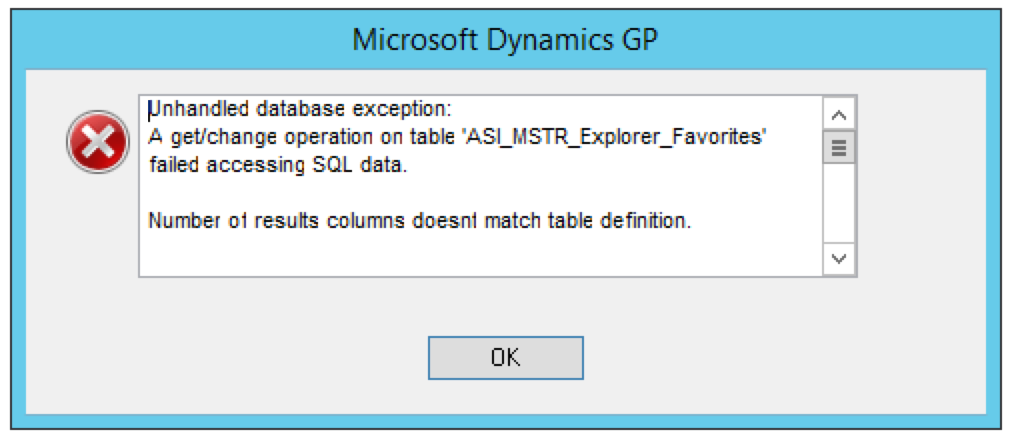
After upgrading to GP2015 R2, while doing a routine testing, following error message was thrown while trying to open Smartlist:

Screen Shot 2015-07-31 at 6.53.32 PM

Full message as follows:

Unhandled database exception:
A get/change operation on table ‘ASI_MSTR_Explorer_Favorites’ failed accessing SQL data.

Number of results columns doesnt match table definition.

Number of results columns doesnt match table definition.

EXCEPTION_CLASS_DB
DB_ERR_SQL_DATA_ACCESS_ERR

Debugging this error took me to the table Smartlist Favorites Master (ASIEXP81). Strange, however, that number of columns indeed matched.

I remembered this issue happening in GP 10 and GP 2010. Suggested solutions were to run GRANT.SQL on all databases and changing ODBC provider to SQL Native Client. However, in my case, both were already done and confirmed.

To avoid any further delay or issue(s), I decided to backup the records from ASIEXP81, recreate the table using GP SQL Maintenance and push the records back from the backup table.

Resolution: Drop and create the table Smartlist Favorites Master (ASI_MSTR_Explorer_Favorites, ASIEXP81) using GP SQL Maintenance.

Only that, I did not have to reinsert the records. When I opened the Smartlist after recreating the table, it automatically populated all records. Strange, again. But it worked.

Word of caution: Always take backup before you do anything with the data.

VAIDY

GP2015 R2 Upgrade – GP Utilities “SynchronizeTableData()” Error & Fix


This issue has already been reported and it’s also been addressed. I would like to post this still. To act more like a pointer. It’s quite crucial in nature.

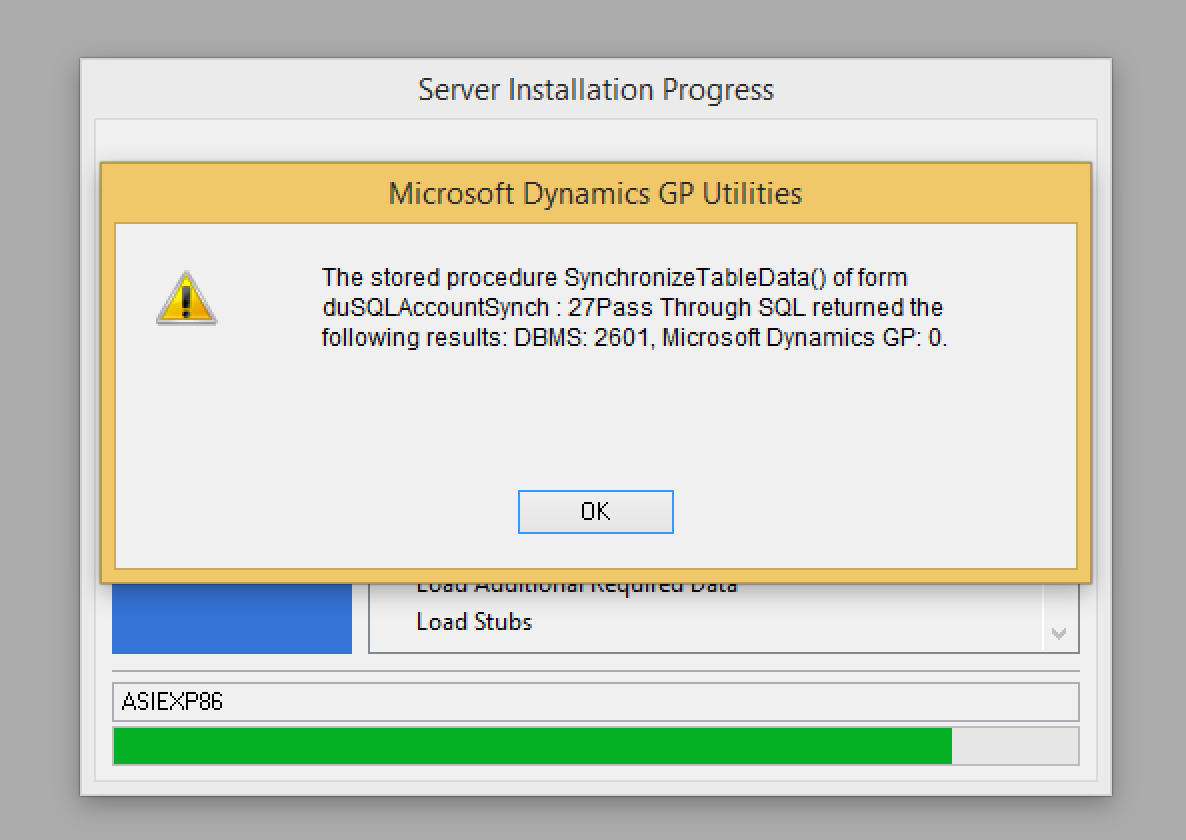
I have been testing GP2015 R2 upgrade on my test environment when I faced the following error message:

Screen Shot 2015-07-27 at 6.10.32 PM

Quite evidently, upgrade didn’t go through after. I remembered this being posted on our GP Support & Services blog. Dug the post and got the solution.

Here’s the post: Known Upgrade Issues When Upgrading To Microsoft Dynamics GP 2015 R2

Please note that this has been fixed already and is available with June 2015 Update.

Vaidy

#GPPT Welcome to the GP Power Tools Public Beta


#MSDYNGP #GPPT David has released GP Power Tools public beta. Fun time ahead.

WinthropDC's avatarWinthrop Development Consultants Blog

David Meego - Click for blog homepageToday, I am announcing a free public beta of GP Power Tools for Microsoft Dynamics GP versions 11.0 (GP 2010), 12.0 (GP 2013) and 14.0 (GP 2015).

As you know, I have been working extremely hard on getting GP Power Tools for Microsoft Dynamics GP ready for release and now it is time to get some feedback.

GP Power Tools is the next generation replacement for the Support Debugging Tool.

Read on for more details …

View original post 294 more words