CBM – Checkbook [checkbook id] is already in user by user [username].


I often come across this request from GP Users:

This happens when the User try to reconcile from CBM Reconcile. And once he/she selects the Checkbook which needs to be reconciled.

After some SQL Profiling & Dex Script Log, I found the following:

Cause:

The table CB100006 contains the User Checkbook Activity records, as and when a User reconciles a Checkbook. This table for some reason is not cleared properly. Sometimes:

1. If you open the form, enter the Checkbook ID and just close it without any activity, this record is not cleared.

2. If you open the form, enter the Checkbook ID and just close GP directly without any activity, this record is stuck.

The above scenarios are faced by me and have not heard of this from any other consultants, so the above need not be recreated consistently.

Resolution:

I. Consultants must open SQL Management Studio, log on to the Data Server and connect to relevant company DB.

II. Run the following queries against DYNAMICS and the respective companies:

/*
   This below queries will delete all stranded and unwanted SQL Sessions.
*/
DELETE TEMPDB..DEX_LOCK WHERE SESSION_ID NOT IN (SELECT SQLSESID FROM DYNAMICS..ACTIVITY)

DELETE TEMPDB..DEX_SESSION WHERE SESSION_ID NOT IN (SELECT SQLSESID FROM DYNAMICS..ACTIVITY)

/*
   The below queries will ensure that the respective user, against whom the error message was thrown, would be cleared from GP Application Session(s).
*/
SELECT * FROM DYNAMICS..ACTIVITY WHERE USERID = ‘[username shown in the CBM error message]’

–Ask that user to log off, if this user has logged on for the day.

III. Run the below query to clear the CBM Checkbook Lock:

DELETE CB100006 WHERE USERID = ‘[username shown in the CBM error message]’

DELETE CBEU1020 WHERE CHEKBKID = ‘[stuck checkbook ID]’ AND USERID = ‘[username shown in the CBM error message]’

That’s it. We are good to go with our Checkbook Reconciliation in CBM.

NOTE: I will be posing another article on CBM Payments Batch Lock Error (which is identical to this error message).

VAIDY

AD LDS & GP Web Service on Windows Server 2008 64 BIT- Workaround


Blown away by this issue and am feeling great to cross a mysterious hurdle.

I was trying to install GP Web Services 10.0 SP4 Hot Fix NOV2009 on the following environment:

1. Windows Server 2008 R2 64 Bit
2. GP 10.0 SP4
3. CRM 4.0 Rollup 9
4. SQL Server 2008 SP1 64 Bit

One of the pre-requisite for Web Services is AD LDS (Active Directory Lightweight Directory Services). This needs to be installed on Windows Server 2008 and no configuration required post installation. GP Web Services will take care of creating an Instance on AD LDS and use it for it’s Data Storage on this AD LDS instance.

I crossed all those steps and started installing GP Web Services and got this message without any delay after double clicking the installer:

The Active Directory Lightweight Directory Services role must be installed on the computer before installing the Microsoft Dynamics GP Web Service.

Nothing other than the above message and I was quite blown away by it’s vagueness. After much exploration, I got the following link from Sivakumar:

Description of the 64-bit operating systems that are supported together with Microsoft Dynamics GP

In that article there is a section called Web Services Runtime Workaround under which there is a subsection called Windows Server 2008 x64 or x86 and Microsoft Dynamics GP 10.0 only, which explains the workaround.

To Summarize the Workaround: With Windows Server 2008 R2 64 Bit, the GP Web Services installation does not identify the AD LDS being installed. It requires a Registry Entry called ADAM_Shared with a registry value, that needs to be created under HKLM\SOFTWARE\Wow6432Node\Microsoft\Windows\CurrentVersion.

We must be carefully following the steps to avoid any consequences.

For those who do not have access to CustomerSource / PartnerSource and are struggling with this issue, comment on this article or email me to my ID: vaidy.dyngp@gmail.com.

Thanks to Sivakumar & Prem (Elcome’s Sys Admin), who were instrumental in sending this link to me on time and clearly saved my day.

VAIDY

Prospects in Dynamics GP (Not being taken care) – Steve Endow


Steve Endow in his blog, Dynamics GP Land, walks us thru’ GP’s Prospect Maintenance and what it lacks in terms of functionality and process.

Surely an insight to one of the untouched topic and how it lacks.

Those who advocate this feature for Customers, please have a look at this article before you leap.

VAIDY

When a Duplicate Journal Entry # is possible? – GP Newsgroup


This one is something very simple yet worth knowing and keeping it on mind: Under what circumstances can a duplicate J/E # be created?

This post contains Victoria’s & Mariano’s replies. I knew that if it’s a Reverse JRN, then we retain the same JRN# when a Reverse Entry is created. But other two solutions are pretty informative for me.

I would like to redirect to the original page, instead of consolidating the answers, so that readers will be aware of GP Newsgroup.

VAIDY

Dynamics GP 2010 – Customers Lookup Enhancement


This is very simple yet important feature that’s been added to GP 2010 Customers & Prospects Lookup.

Now we have an option called “Exclude Inactive Customers” and once we select it, the lookup filters Customers who are only Active and displays in Lookup. And it is not just that, we can set it up as Default View by clicking on “Set as Default View”. This is how it is:

I remember I have done this filtering using VBA code to one of my customers, an year back. And needless to say, my work got appreciated as none of the other approach they tried worked with a better performance.

Now this feature comes out of the box and I am sure a massive list of Customers would be happy with this.

VAIDY

Dynamics GP 2010 – Service Call Enhancement


One of the most helpful enhancement in Field Service – Service Call Management is that, we are now able to enter a Non-Inventory Item on a Service Call.

What does that mean for Service Industry Clients? They do not have to maintain all kinds of Service related tasks, such as Installation, Maintenance, etc. as Inventory “Service Charges” items.

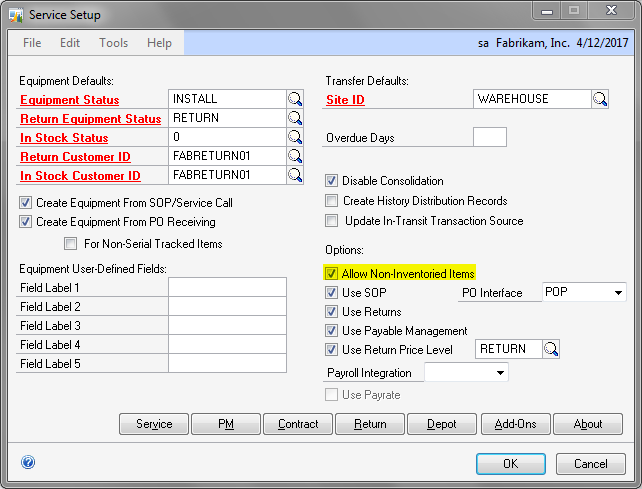
To enter Non-Inventory Items on a Service Call Spares window, one must enable “Allow Non-Inventoried Items” under “Options” section in “Service Setup” form, which is accessed from Microsoft Dynamics GP -> Tools -> Setup -> Project -> Service Setup. Shown as below:

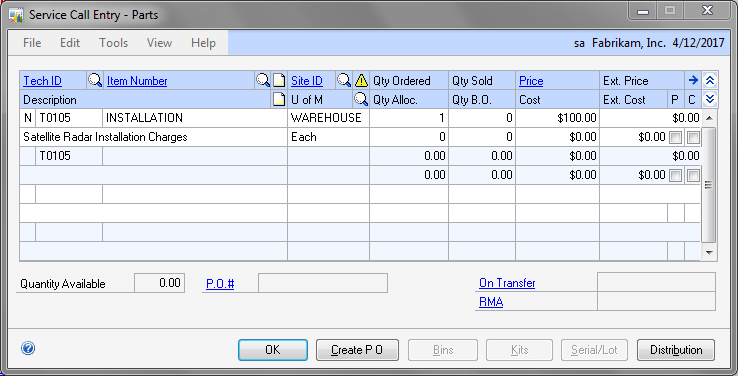
Once this is setup, you can then enter any Non-Inventory Item on Spares Entry window. Sample one is shown below:

The one which I entered as “INSTALLATION” is a Non-Inventoried Item. And whenever we enter such Items, we get “EACH” as our Unit of Measure, as it is in SOP Entry.

Very useful feature and I know how much it is going to help my current assignment, had this been introduced a bit early.

VAIDY

Sales Tax Calculation in GP – gpTip42Day


This one is very simple yet powerful illustration, on How GP calculates Sales Taxes, from Frank Hamelly on his gpTip42Day.

I am writing an Pointer Article to this inspite of adding gpTip42Day as a Side Bar Link, as this article taught me the actual calculation behind Sales Taxes. I usually assume from the way the amounts are arrived at, but I had never known about the theory behind it.

Must read.

VAIDY

Bing & GP Unite – Matt Landis’ Microsoft Small Business


This one’s amazing. Matt Landis introduces to a new Add-on to GP which unites Bing Search and Dynamics GP Customer Maintenance. And there is a video which demonstrates how this work.

I am absolutely amazed, to say the least. And this particular Add-on demonstration shows how GP is flexible and open to do what we wish to.

Good one, Matt.

VAIDY