Microsoft Dynamics GP 2013 Web Client – Tidbit


Well, this one is surely a delight for me personally, because I am a die hard Dexterity Developer and I always had and will recommend any customization to be on Dexterity.

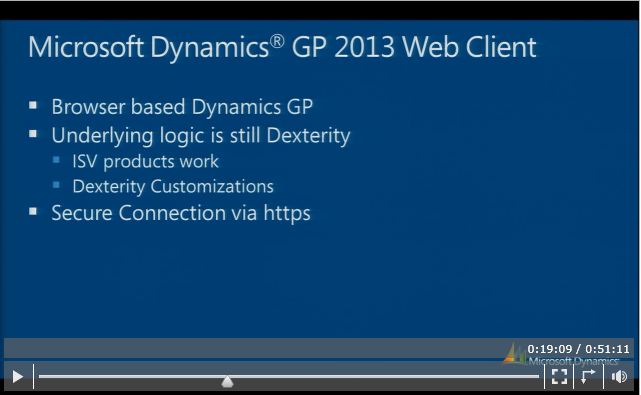
I am currently watching Convergence 2012 virtual session named “The Road to Microsoft Dynamics GP ’12′”and got this snapshot which is self-explanatory:

I took this snapshot as is from the virtual session.

Recently I converted all our existing VBA customizations (critical ones) to Dexterity and now this news. Those who were preaching against Dexterity and predicted it’s doomsday, please change your mindset at least from now.

VAIDY

GP Homepage Layout Mass Update – Thru’ SQL


I love SQL. Simply because, it eases lot of pain in doing some redundant work.

When you create a user, by default, GP creates the following segments on his/her homepage:

1. To Do (Reminders/Tasks)
2. My Reports
3. Microsoft Outlook
4. Quick Links
5. Connect (links to Online Resources such as CustomerSource, Forums, Blogs, etc.)
6. Metrics (quick dashboards for users)

All of the above work perfectly, but at some stages (especially when you are working on a GP Terminal Server) some of these components would halt GP for a while, not allowing users to do anything.

One classic example is Microsoft Outlook. We recently migrated our Email Services to Microsoft Office 365. For those users who use Thin Client to on their day-to-day job, Terminal Server is THE destination. Quite obviously, Terminal Server has got Outlook installed.

Before Office 365, Outlook profile used to connect to our on-premise Exchange Server. After migration, we had to change the profile from Exchange Server to Office 365 hosting server.

Whenever a user logs on to Terminal Server and opens GP, GP will halt for at least 3-5 mins to get this Outlook configured. I am getting calls from users (yes, even now) that their GP session does not work and they are not able to do anything. Following icon shows up on their taskbar when this happens:

It didn’t take me much time to realize that all these users had added Microsoft Outlook on their GP homepage.

“Do we really need Outlook on GP homepage?” is a question to be asked to oneself. Yes, Microsoft has integrated your ERP with one of the most used product by maximum business users. Agreed. But is that alone a reason for you to use it? Let’s not get into that argument in this post, anyways.

I had to take a stand and remove Microsoft Outlook from those users’ homepage. But then, I don’t know, right now, about how many users out of 100+ total users have added Outlook on their homepage.

Certainly not without the help of a SQL query.

The table where this information has got stored is SY08100 (Technical Name: syHomePageLayout). In this table, the column SectionID denotes the sections which are available for a user to add to his/her homepage. Following is the legend:

1 – To Do (Reminders/Tasks/Cues)
2 – Microsoft Outlook
3 – Metrics (quick dashboards for users)
4 – My Reports (links to users’ favorite reports and smartlists)
5 – Quick Links (links to users’ frequently used windows)
6 – Connect (links to Online Resources for GP such as Forums, Blogs, etc.)

Typically, for each user, this table will contain 6 rows, each row denoting each of above section. SY08100 also contains a column named Visible. This denotes whether or not to show a particular section on GP homepage.

For instance, if user SA has setup his GP homepage to show To Do, My Reports & Quick Links to show up, the following will be SY08100 records:

So, if I want to hide Microsoft Outlook from all users’ homepage, I just have to execute the following SQL query on DYNAMICS database:

UPDATE SY08100 SET Visible = WHERE SectionID = 2

We must also understand one thing. Users can always add this again thru’ Customize this page… option. So this is NOT A PERMANENT SOLUTION.

Whenever there is a necessity, as in my case, you can certainly rely on this SQL method to do a homepage layout mass update.

VAIDY
Who uses BI? – Dwight Specht


This one’s an awesomely simple yet on-the-dot post, which I read today. I am not going to brief about this post and I leave it to you read it fully, understand what exactly it wants us to learn.

Here is the post, written by Dwight Specht: Who uses BI?

I myself am working on BI reports, a lot, nowadays and posts such as this only add to my constant improvement.

Special thanks to Dwight.

VAIDY

Customer Credit Summary: Average Days To Pay


I received an email today with a query on GP’s “Average Days To Pay” on a Customer’s Credit Summary.

Query is: How GP calculates Average Days To Pay for a customer?

According to GP’s Receivables Management user manual:

After a customer has paid his or her first invoice, the average days to pay (ADTP) is calculated based on the number of invoices a customer has, the time taken to pay the first invoice, and the time taken to pay the most recent invoice.

The formula for calculating the average days to pay is: 
ADTP = (Current ADTP) x (Number of Invoices) + (Number of Days Taken to Pay Most Recent Invoice) / (Number of Invoices + 1)

The time it took to pay the first invoice would provide the initial value for the Current ADTP. Any later invoices paid by this customer will provide the values for the number of invoices and the number of days taken to pay the most recent invoice. The ADTP calculated on the customer’s initial invoices then becomes the “Current ADTP.” You can use this value when you recalculate the ADTP for later invoices.

There are two ADTPs; LTD (Life To Date) and YTD (Year To Date).

The important point that you may have to remember is that Average Days To Pay YTD will be calculated only based on Amounts Since Last Close.

VAIDY

Packt’s Microsoft Dynamics Mayhem


Packt Publications has once again given us an opportunity to get desired Microsoft Dynamics books at staggering discounts.

The list of books are quite handful. You do get favorite Microsoft Dynamics GP books (Cookbook by Mark Polino, Reporting by Liley & Duncan & Implementation by Victoria Yudin); all are awesome books for any GPian.

Visit Packt’s page to learn more about this and get benefited: Microsoft Dynamics Mayhem.

VAIDY

RIP Apture – I Will Miss You


How many of my blog readers remember about my blog being enabled with Apture Highlights?

It’s very sad that this beautiful feature is now no more. I got to know this long back, but the feature that I added on my blog still worked; until this morning.

You check out Apture’s Site. All you got to see is a message from Apture Team as below:

I am not sure what to express, but only one thing which I feel right now is this: Google, you have successfully killed one more beautiful product.

RIP Apture. I loved your features. I loved the way you simplified my vocabulary learning. I loved the way you just simply popped out of the web page without taking me to any other site. I loved the way you were just a simple yet catchy product called Apture. I was so in awe that I put your logo on my blog and proudly claimed that my blog got “Aptured”.

Not any more.

I will surely miss you.

VAIDY

Test Company Posting Journal File Destinations


One thing we all must remember while restoring a Live Company DB onto a Test Company DB is, that several places in GP tables, Company ID is stored. We have a SQL Script that will search ALL tables and ALL columns that contain the Inter ID (SQL ID for each GP database) and replace the live DB ID with test DB ID.

This post explains some specific cases where the Posting Journals of all transaction types are destined to a text file. Typically, in a multi-company environment, consultants would setup the path for all Posting Journals with the respective company Inter ID (or any folder name that uniquely identify each company).

I will explain you an ideal scenario, where this poses an issue.

I would restore live backup onto a Test Company and run the SQL script that will replace all live company ID references to test company ID. But my Posting Journals File destination is a simple string value, something like below (I have taken Purchase as a sample series):

:C:Journals/[CompanyID]/Purchase/[JournalReportName].txt

So if my live company ID is, for instance, VMLIVE, then the above path would like this:

:C:Journals/VMLIVE/Purchase/JournalReportName.txt

Whenever I post a purchase transaction, my Posting Journal detail would go and get append on this file, which I can audit at any point of time.

Now, consider that my Test Company ID is VMTEST. When I restore my live backup onto my test company and run the SQL script which replace live company reference with test company ID, everything would get fixed except this. Since the value stored in File Destination field in the Posting Journal Destinations table (SY02200) is NOT JUST the company ID, but the above Filename with Path.

After restoration and I post a purchase transaction on my test company, the posting information get appended on the file JournalReportName.txt on the path C:\Journals\VMLIVE\Purchase, which is WRONG. It’s not just wrong. Your posting journal file gets dumped with test entries as well as live entries. If any client audits the Posting Journal files as part of their internal process(es), then it’s a big trouble.

In such scenarios, where all posting journals are destined to a text file on a path identified specifically by a company ID or name, the GP Administrator must make sure that the field FILEXPNM (File Export Name) on table SY02200 (Posting Journal Destinations) must be properly updated before we post any test entires. Below is the simple UPDATE statement which would fix this:

UPDATE SY02200
SET FILEXPNM = REPLACE(FILEXPNM, ‘[LiveCompanyID/Name]‘, ‘[TestCompanyID/Name]‘)

Where [LiveCompanyID/Name] denotes the value which identifies your Live Company and [TestCompanyID/Name] denotes the value which identifies your Test Company.

VAIDY

To all Budding GP developers – Screen Resolution Does Matter


This is very silly point, but quite a huge dampener when it comes to Customer satisfaction.

I had given a simple customization as a trial to a budding developer as part of an exercise. I received the chunk to test it out.

What I could see was a huge window containing almost 50-75 fields (including labels, several text boxes, etc.) with lot screen real estate being wasted between fields. Secondly, this window went out of my test machine’s screen space. The only possibility for that, in my opinion, is the resolution of the developer’s machine was way too higher than my test machine’s screen resolution.

Always, keep in mind, that when you develop a customization on a computer with higher resolution than that of the customers’, it’s going to be an issue. Customer would have to scroll horizontally each time to enter or view data on each field. And trust me, that’s very irritable than a bad and buggy customization itself.

Always, try to limit the window size that would fit inside a 1024 X 768 screen resolution (that’s the lowest that I feel is still existing in this universe), so it would fit in almost all resolutions.

This possibly be a non-issue soon with technology being so advanced nowadays and customers are willing to shed out some bucks on higher resolution & wide screen monitors.

But you never know.

VAIDY

Support Debugging Tool (SDT) v11.0 Build 16 is Released


We have a bundle of features and enhancements added to SDT and the new version v11.0 Build 16 is released.

David has a write up on this release with exhaustive details.

Sure this is going to be more useful than previous versions.

VAIDY

Welcome 2012…!


My heartfelt wishes to entire GP Community… Happy, Prosperous, Successful & Peaceful 2012…!!!

Most part of 2011 was quite dull, especially the later period, due to various professional and personal commitments. I would like to change it this year and be active as much as possible.

Wishes again for a wonderful 2012.

VAIDY