GP2016 System Requirements


I did not notice this being published and just got to know. Thought I would share that immediately.

GP 2016 system requirements data sheet is available.

While most of them are quite expected, one important point caught my attention.

Under “Additional Requirements”, it’s mentioned that Dynamics GP 2016 will NOT support Office 2010 32-Bit/64-Bit applications. However, we will have to wait for the final system requirements data sheet once GP2016 is officially released.

It’s still worth noting, as GP boasts off tight integration with MS Office.

VAIDY

GP2016 – Feature of the Day – Inventory AIO Viewer & Project on Purchase Requisition


Excited to see the “All-In-One Viewer” being extended for all modules. After sales, inventory has got its own AIO viewer.

Perhaps the most important feature that I am excited about, in addition to HTML5 Web Client, is the ability to add a Project to Purchase Requisition Entry. This was sorely missed by many of the customers. I am glad this feature made it to GP2016.

Read the “feature of the day” posts here:

VAIDY

20 Best Dynamics GP Blogs of 2016


I am delighted to see my blog, Dynamics GP – Learn & Discuss, listed as one of the 20 Best Dynamics GP Blogs of 2016.

best-dynamics-gp-blog-badge

Thank you so much, Rand Group, for honouring me with this. I feel even more responsible now to continue.

VAIDY

GP2016 – Feature of the Day – Web Client Search & Sales All-In-One Viewer


Continuing from the first feature, we have got Web Client Search & Sales AIO (All-In-One) Document Viewer.

I am quite interested in the second one; Sales AIO Document Viewer. This would be more helpful, in the lines of already available Purchasing AIO Document Viewer.

Web client search is another great feature that would help us a lot. It may not sound a great functionality, but how many times have you tried to find out where a window/report is? How many windows/reports that you know by heart, that you would not require a help to find one?

However, I am interested more to see if this would work for ALL windows/reports. Theoretically, it does sound like it would. I would love to see if that works for all resources; standard/ISV/customisation windows/reports.

Let’s wait for the release to know more.

VAIDY

GP2016 – Feature Of The Day – Web Client


Pam has started the GP2016 Feature of the Day series with the most anticipated feature: GP HTML5 Web Client.

Let’s prepare for the party time!

VAIDY

IMPORTANT: GP 2016 Upgrade Blog Series


By now, the entire GP community would be excited about GP 2016 release, scheduled on 1st May 2016 and would be eagerly waiting for Feature of the Day blog series on Inside Microsoft Dynamics GP blog.

I am more interested in this series: Microsoft Dynamics GP 2016 Upgrade Blog Series

Needless to say, this series would be crucial to all consultants/partners/customers to understand what to expect in GP2016 upgrade.

Watch out for this series, GP folks. Don’t miss it.

VAIDY

SQL Server Backup Files Cleanup


I learned something interesting today. Something so simple yet crucial. Alright, let me jump straight on to it.

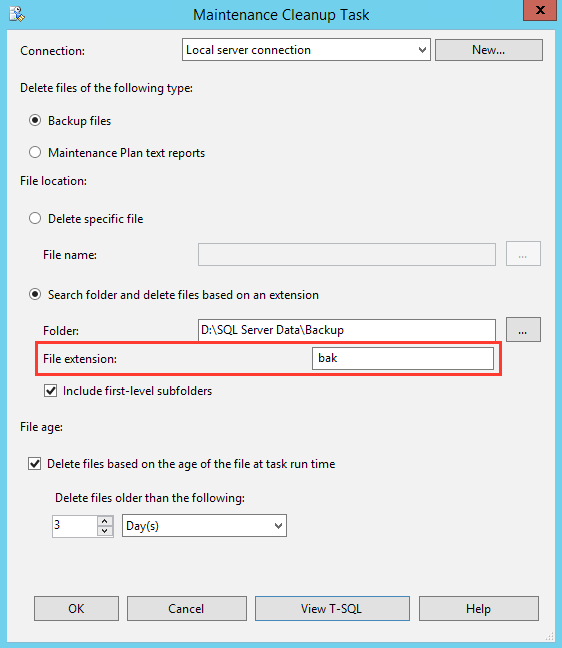
After going live with GP2015R2, as part of SQL maintenance tasks, I created daily backup schedule in SQL Server. Client’s backup retention policy is 3 prior days. So I created a “Maintenance Cleanup Task” to remove all backup files that are older than 3 days.

All good. Only that, it didn’t work. And we realised that only yesterday. Bummer. Thankfully, it was a new server so we had plenty of space. And size of DBs are quite small. So I could see backup files dating yesterday. Which is nice.

I had to figure out what’s going wrong all this time. It’s a fairly simple setup. Nothing complex. Something must be wrong. I opened the maintenance task definition window. Shown below:

Screen Shot 2016-02-23 at 8.55.04 AM.png

Looks perfectly alright to me. Isn’t it? But nope. Something makes this task fail every night.

When I looked at this post, Maintenance Cleanup Task (Maintenance Plan), on Microsoft MSDN site, I could not get much help from. It was good, detailed, but not good enough to help me why my task fails every night.

I then did something that I thought is weird, but turned out to be the solution.

I changed the File extension value from .bak to just bak, as shown below:

Screen Shot 2016-02-23 at 8.55.04 AM.png

Saved the definition and ran the task manually to check if it worked.

Voila… It worked…!!!

Those who are reading this and thinking about why I am blogging something as simple as this (as if I found the god particle), well in all honesty, I had absolutely no idea about this till now. Just thought I would share this, as I always do. So please be nice on me.

VAIDY

Management Reporter – Misspelled Account Categories


This would be second Management Reporter post in a row. This also is about the default reports and how to troubleshoot the issues pertaining to the default reports.

I have an Australian edition of GP installed. Most of the terminologies (such as “Fiscal/Financial”, “Realized/Realised”, etc) are localised in GP. However, default reports in Management Reporter still are in US English, if I am not wrong.

Consider the following default balance sheet row definition:

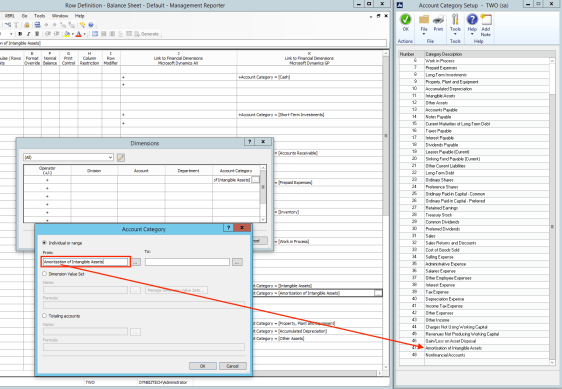
Screen Shot 2016-02-09 at 04.51.43 PM

I was wondering why balance on this account did not show up on the report. After several minutes, I realised that the account category was misspelled, compared to what’s there in GP. Notice that on the report definition it is “Amortization” with a ‘z’ and in GP it is “Amortisation” with a ‘s’.

After changing the categories with correct ones, by referring to GP, the report started showing the correct figures.

This post is relevant only if you reuse the default reports. It’s irrelevant otherwise.

Happy Reporting!

VAIDY

Management Reporter – This report view contains no data.


I have been working on a Management Reporter project, for which I wanted to install and configure MR2012 CU14 from the scratch.

Completed the server and client installation, completed the Configuration Console processes, imported data from GP2015R2 (sample company) and reached a point where I wanted to test the default reports.

Ran the report and got the following message:

Screen Shot 2016-02-10 at 09.44.58 AM

I checked everything, including the date range, data available in sample company and everything that I could remember. All were perfectly alright.

I was, however, getting some warning messages while the report was getting generated. Messages as follow:
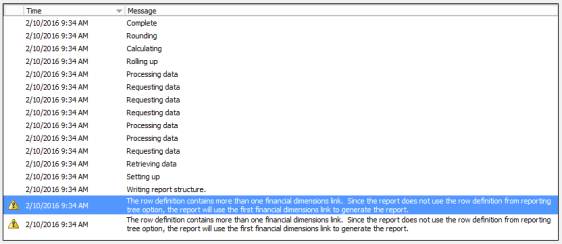
Screen Shot 2016-02-10 at 09.47.43 AM

This one was familiar. When we install management reporter, we get default reports along with it. It’s a nice and easy way to get started with MR, learn the concepts. However, it comes with its own headaches.

To name one (also most important), each default report row definition would have link to both Dynamics AX and Dynamics GP financial dimensions. To a GP consultant’s dismay, AX dimensions link would be placed in a column before GP dimensions link, as shown below:

Screen Shot 2016-02-10 at 09.56.46 AM

Now let’s go back to the warning message. It says:

The row definition contains more than one financial dimensions link. Since the report does not use the row definition for reporting tree option, the report will use the *first* financial dimensions link to generate the report.

The first here being Microsoft Dynamics AX dimensions link. Thereby, rendering all reports with the message shown in the first screenshot on this post.

Alright, so I know the cause now. I know what I must do to get past this message. However, I had no clue HOW to do that. I mean, I know I must remove AX dimensions link column from the reports, but not sure how.

This community forum post answer from Sue tells us how to remove the link column. Too bad, this post was not marked as an answer.

I would, however, like to point to the standard & the easiest method to remove the unused link (in my case AX dimensions link).

  • Either you can go to the Edit menu and click on “Row Links” as shown below:
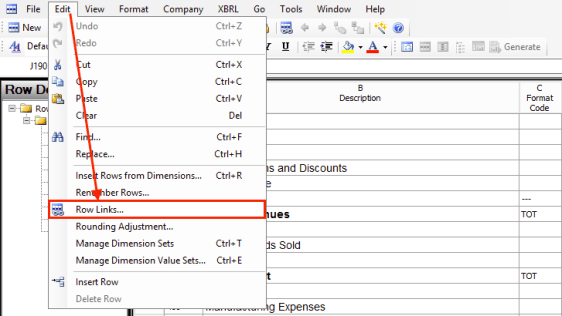
Screen Shot 2016-02-10 at 10.08.15 AM

  • Or you can also use the tool bar button for “Row Links” as shown below:
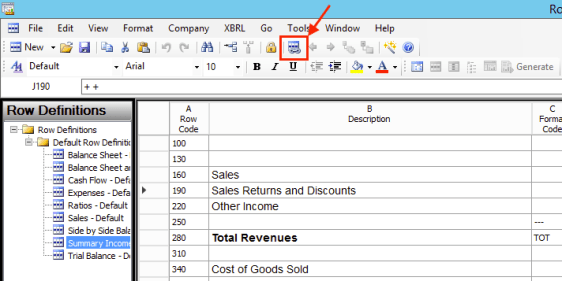
Screen Shot 2016-02-10 at 10.06.30 AM

Once you click on “Row Links” from either of the above steps, you should get the following window:
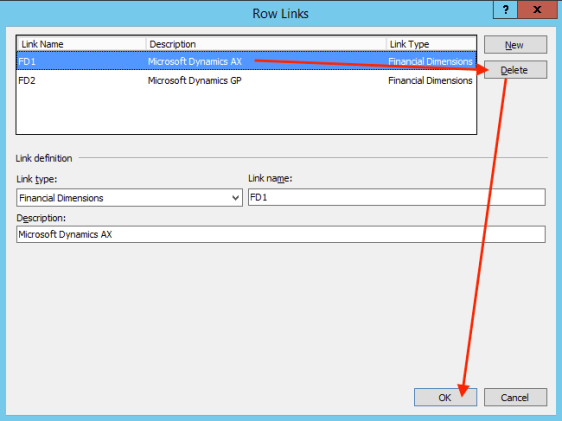
Screen Shot 2016-02-10 at 10.13.02 AM

Once deleted, your report definition would have only one dimensions link, i.e. to Microsoft Dynamics GP link.

Report would then show the data as expected.
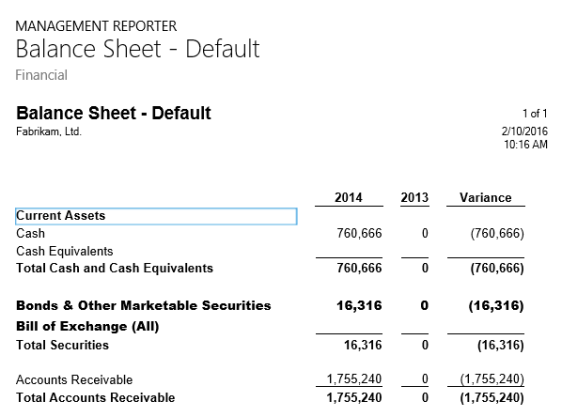
Screen Shot 2016-02-10 at 10.16.26 AM

Of course, this would be the case if you want to reuse the default reports. This post would be irrelevant for those who design reports from the scratch.

Happy Reporting!

VAIDY

Happy New Year 2016


To the GP Community:

Happy New Year 2016!

This year is slated with lot of interesting releases for GP impending. I am absolutely as excited as all of you.

Let’s wish this year be an excellent year for Dynamics GP and its success.

VAIDY