Simplifying the query: Can we display the Note Text for any record (for instance, Customer Note, Vendor Note, Item Note, etc…) on a standard GP report? If so how?
I first suggested to write a RW (Report Writer) function, to pass Note Index as the parameter and return the Note Text from the function. The user replied back, saying that he does not deal with 3rd Party Chunks and he customized the report using Report Modifier. Moreover, he does not have VBA.
Challenge: We are left with only Report Modifier. No new table relationship can be defined. No VBA. No user-defined RW Functions.
Then came David’s reply to the same post. He sent us a link from his blog, which explains Built-In RW Functions which can be used for many default requirements. Getting Note Text is one of them. That’s my starting point to explore this.
Solution: Below is the step by step instruction on how we can achieve this, with limited customization tool options, but with abundant Built-In RW Functions. I have modified the Detailed Item List (Run from Item Maintenance Print Button) for the sample. This sample works with Dynamics GP 10.0.
1. Open the report from Report Modifier (or click on Modify from the Report Window).

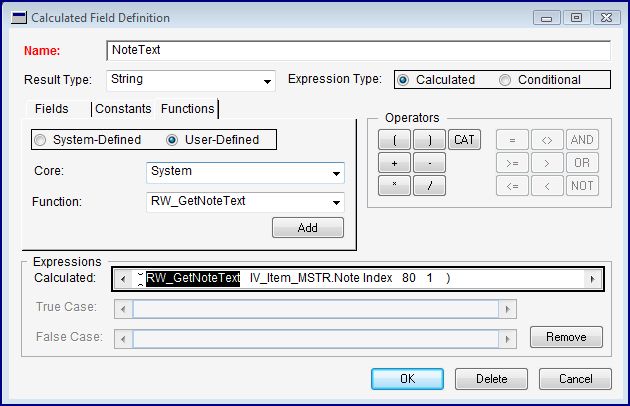


Add this Calculated Field anywhere on your report, of course on a more relevant place.
To see the sample that I have developed, please visit this link and download the package file: Using Built-In RW Function to Display Note Text on a Report.
Inspired by David’s Article: Using the Built-In Report Writer Functions.
VAIDY

 Dynamics GP - Learn & Discuss